
Add/Drop Classes
Update an active entry when a competitor chooses the wrong division, switches divisions, or wants to add or drop a class on show day.
About 4 minutes · Reviewed for EZSM 5.2.537Open Add/Drop
- Open the correct show in the Secretary Dashboard.
- Find the competitor under Active Entries.
- Select the ± Add/Drop control beside the entry.
The window follows the show's pricing model. A per-division show displays Add/Drop Division; a class-priced show displays Add/Drop Class.
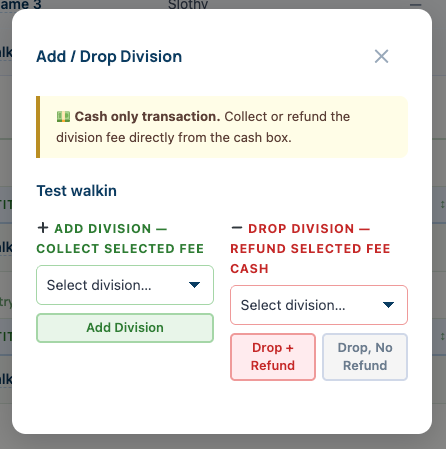
Switch an entry to a different division
When a competitor selected the wrong division or decides to switch divisions on show day, complete the change in this order:
- Under Add Division, select the new division.
- Select Add Division and collect the displayed division fee by cash or check.
- Open Add/Drop for the entry again.
- Under Drop Division, select the old division.
- Select Drop, No Refund.
This keeps the competitor assigned to the new division and its classes before the old division is removed.
Add one class
When the show uses class-based pricing and the competitor only wants to add one class:
- Open the Add/Drop window.
- Under Add Class, select the additional class.
- Select Add Class.
- Collect the displayed class fee by cash or check.
Use the Add side only. Do not drop an existing class unless the competitor also wants that class removed.
Drop a class or division
Select the class or division to remove, then choose the action that matches what happened at the cash box:
- Drop + Refund: removes the class or division and records the displayed amount as money refunded from the Cash Box.
- Drop, No Refund: removes it without changing the Cash Box.
Dropping a class or division also removes its existing show-day result or placing data for that entry.
All Add/Drop money is handled at the Cash Box
Every positive or negative amount shown in Add/Drop is a cash-box adjustment. Collect additional fees or return money directly by cash or check.
Added fees increase the displayed Cash Box total. A Drop + Refund decreases it. Drop, No Refund changes the entry without creating a cash-box adjustment.
After the change, confirm that the competitor appears in the correct division or classes under Active Entries.