
Add Memberships to Your Enhanced Page
Add the organization’s public membership options to its enhanced page so visitors can compare levels and select Join Now without leaving the organization page.
About 5 minutes · Reviewed for EZSM 5.2.539Before you begin
The Memberships section is available only when both Blue Ribbon and Memberships are active on the Show Manager account.
You will also need at least one active membership level that has Public Display turned on. To check a level:
- Open My Dashboard → Memberships → Edit Levels.
- Expand the membership level.
- Confirm Public Display is On.
- Save the level if you made a change.
Private levels such as Board, Committee, or Volunteer lists normally have Public Display turned off and are managed internally through View Members.
Add a Memberships section
- Open My Dashboard → Show Manager → Page Builder.
- Find Custom Sections.
- Select + Add Section.
- Enter a heading such as Join Our Club or Membership Options.
- Under Section Type, choose Memberships - Cards or Memberships - List.
- Add optional body text that explains the membership term, renewal process, benefits, or who should join.
- Choose any additional display settings.
- Select Save Page Builder.
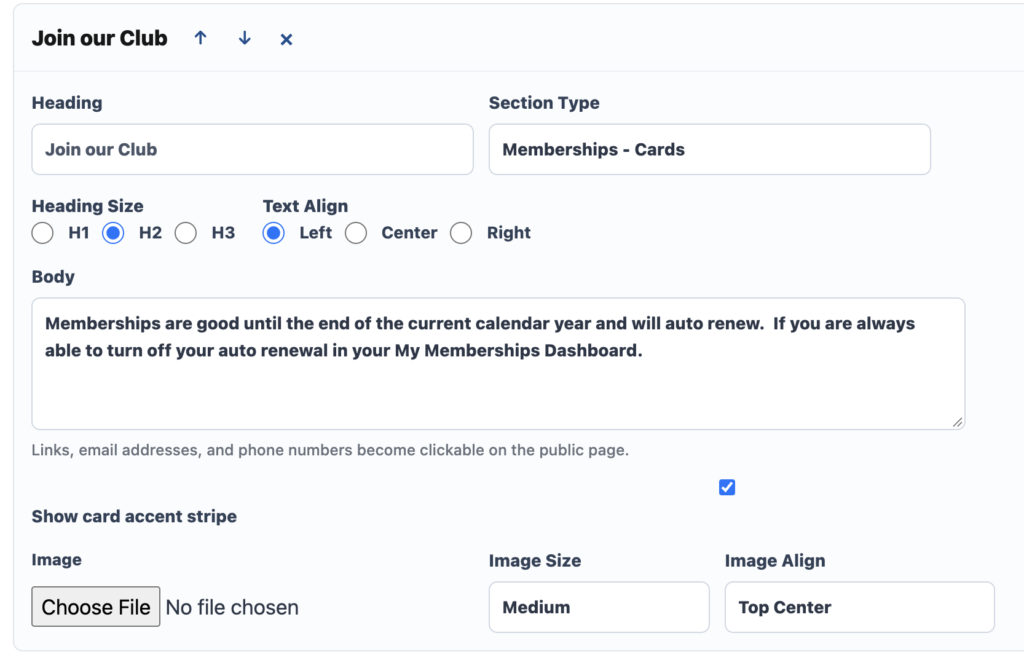
Choose Cards or List
- Memberships - Cards: Displays each public membership as a larger visual card. This is a good choice when membership enrollment is an important purpose of the page or when there are only a few public levels.
- Memberships - List: Displays the same membership information in compact rows. This is useful when the page has many sections or the organization offers several public levels.
Both layouts display every active level with Public Display turned on. Individual levels are not selected inside Page Builder; show or hide them under Memberships → Edit Levels.
Customize the section
The section editor includes:
- Heading: The title shown above the membership options. If it is left blank, the public page uses “Membership Options.”
- Heading Size: Choose H1, H2, or H3 to control the heading’s visual importance.
- Text Align: Align the body text left, center, or right.
- Body: Add instructions, benefits, renewal information, or other helpful details. Web addresses, email addresses, and phone numbers become clickable on the public page.
- Show card accent stripe: Adds the Page Builder accent color along the side of the complete section.
- Image: Upload an optional image for the section.
- Image Size: Display the image as Thumbnail, Medium, or Full size.
- Image Align: Place the image at the top or bottom and align it left, center, or right.
Use the up and down arrows in the section header to move the Memberships section on the page. Select the × only when you want to clear and remove the section.
What visitors see
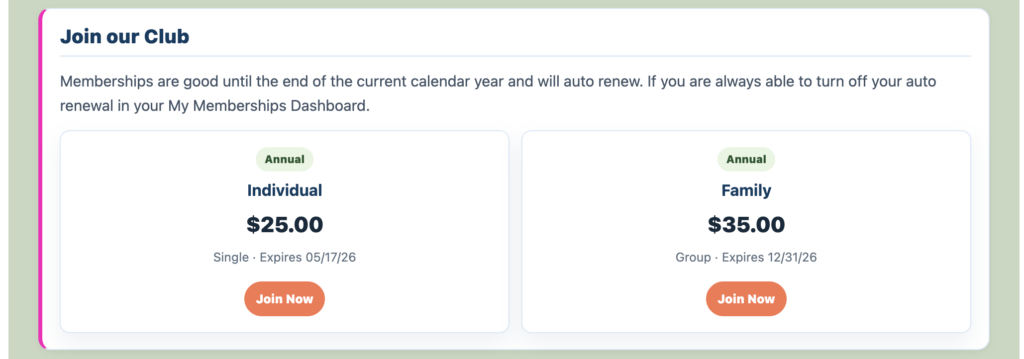
Each public membership option automatically displays its:
- Annual or Lifetime type
- Membership level name
- Price
- Single or Group designation
- Expiration date or No expiration
- Join Now button
The section uses the heading and button colors saved in Page Builder. If the accent stripe is enabled, it uses the saved accent color.
What happens after Join Now
Selecting Join Now opens the enrollment form for that membership level on the same enhanced page. The form collects the primary member’s contact and mailing information.
Depending on the level setup, it can also collect:
- Additional member names and email addresses for a Group membership
- The organization’s saved Membership Questions
- Any answers marked as required for submission
After submission, the membership record becomes available to the organization under Memberships → View Members.
Save and test the public page
- Select Save Page Builder.
- Select View Public Page.
- Confirm the intended levels appear and hidden or Private levels do not.
- Check the heading, body text, image, stripe, prices, terms, and Join Now buttons.
- Open one Join Now form and confirm the correct Group fields and Membership Questions appear.
- Review the page on both a computer and a phone.
After adding, moving, editing, or removing a section, select Save Page Builder before leaving the page.
If no memberships appear
- Confirm Blue Ribbon and Memberships are active under Free Account Upgrades.
- Confirm the membership level is active rather than archived.
- Turn on Public Display for each level that should appear.
- Confirm the section type is Memberships - Cards or Memberships - List.
- Save Page Builder, then reload the public page.