
Additional Classes Added to a Show
Use Modify Entry to add or remove classes and divisions, or switch to another saved horse, without starting a second show entry.
About 4 minutes · Reviewed for EZSM 5.2.537How you may learn about a new class
The Show Manager may send current entrants a branded email when new classes or divisions are added. The message lists the new choices and includes a Review My Entry button.
Notification is optional, so you can also check your entry directly from My Dashboard → My Shows while entries are open.
Open Modify Entry
You can begin from the email's Review My Entry button or from your dashboard:
- Log in and open My Dashboard.
- Select My Shows.
- Expand the card for the correct show and horse.
- Select More….
- Select Modify Entry.
Choose your changes
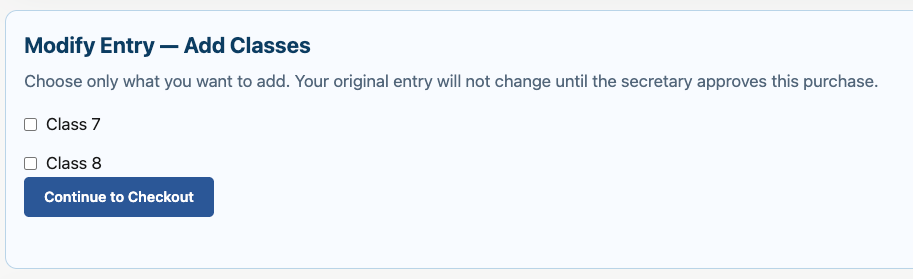
The checked classes or divisions are your current selections. Check or uncheck them to add, drop, or switch selections. Your original entry remains unchanged until the Show Secretary approves the request.
- Add a class: check each additional class you want.
- Drop a class: uncheck a class you no longer want.
- Switch classes or divisions: uncheck the old selection and check the replacement in the same request.
- Switch horses: choose another horse from the Horse menu.
A replacement horse must be available under My Dashboard → My Horses. Its current saved documents are attached when the secretary approves the change, and the document-review checks are reset so the new papers can be verified.
Entrant-name corrections are handled by the Show Secretary.
Submit your changes
- Review the selected horse, classes, and divisions.
- Select Submit Entry Changes.
- If the new selections cost more, review the checkout and complete payment.
- If checkout is not required, the request is sent directly for secretary approval and you receive a branded confirmation email summarizing the changes.
A paid change creates a separate order connected to your original entry. You are not charged again for selections already purchased.
How balances and refunds work
If the new total is higher, checkout collects only the additional amount. If an earlier unpaid cash/check refund is on the entry, that amount is applied first and checkout collects only the remaining difference.
If the new total is lower, the confirmation shows the cash/check refund that will be due from the show after approval. Partial card refunds are not issued through Modify Entry.
If a separately paid change must be declined, the refundable amount, less processing fees, is returned to the card used for that checkout.
After entries close
Online entry changes are available only through the show's Entry Close Date. After entries close, Modify Entry is unavailable and the card reminds you to contact the Show Secretary.
Use More… → Contact Show Manager when you need help reaching the show team.