
Approve or Refund an Entry
Review a new entry while it is pending, confirm that its show information is ready, and approve it into the active class lists.
About 5 minutes · Reviewed for EZSM 5.2.537Why new entries are held for approval
Online entries are placed in Pending Entries so the show team can review them before they become part of the active show. This provides a checkpoint for correcting problems before the entry appears in its selected classes and is used during the event.
Before approving, confirm:
- The competitor and horse information belongs to the correct entry.
- The selected classes or divisions are appropriate.
- Each required health document is present and can be opened or has been reviewed from paper.
- The required waiver is signed or a paper waiver has been confirmed.
- Notes, add-ons, additional-question answers, and emergency-contact information do not require follow-up.
It means the entry is waiting for the show team to complete its normal review.
Review and approve the entry
- Open the Secretary Dashboard and select the correct show.
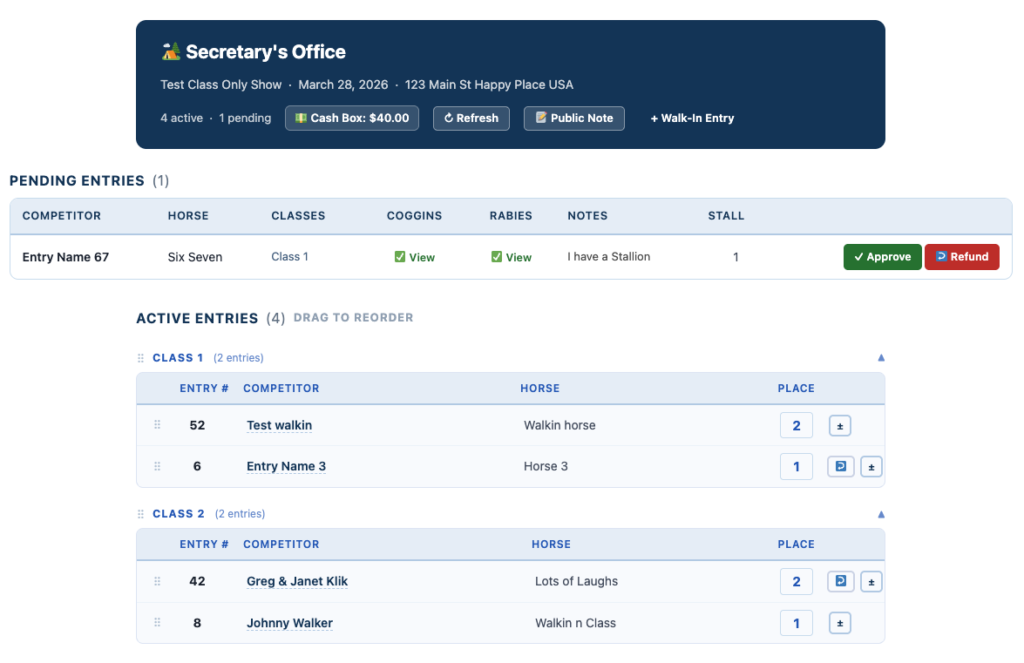
- Find the entry under Pending Entries.
- Select the competitor's name to review the full entry details.
- Open and review the requested documents, confirm the waiver status, and verify the selected classes or divisions.
- If an entry number is already available, enter it in the Entry # field. You may also leave it blank and assign it later.
- Select Approve.
Approval moves the entry from Pending Entries into the appropriate sections under Active Entries.
Entry numbers
If the number is ready during review, enter it before selecting Approve and it will move with the entry. If numbering is handled later, approve the entry without a number and enter or change it from Active Entries.
Access the entry after approval
Approving an entry does not hide its supporting information. Under Active Entries, select the competitor's name to view the same entry details, including contact and emergency information, add-ons, answers, notes, waiver status, and requested health documents.
This lets the secretary continue reviewing the entry while managing classes on show day.
Refund an online entry
Pending Entries is the only place in the Secretary Dashboard where the Refund action is available for an online entry.
Selecting Refund returns the full entry payment to the original credit card, less non-refundable processing fees.
If only part of an entry should be refunded, work with the club treasurer or Show Manager to issue the partial amount separately by cash or check.
If an entry has already been approved and later needs a full refund, move it back to Pending Entries first. Then review the entry and select Refund.