
Cloning a Show
Use an existing show as the starting point for a new one without rebuilding its pricing, class list, add-ons, and entry questions.
About 4 minutes · Reviewed for EZSM 5.2.537Why clone a show?
Creating and organizing a class list is often the most time-consuming part of show setup. If your organization runs similar events throughout the season, cloning lets you reuse that work and update only what has changed.
The original show remains unchanged. Saving the clone creates its own entry form, results page, entries, and financial record.
Where to find Clone
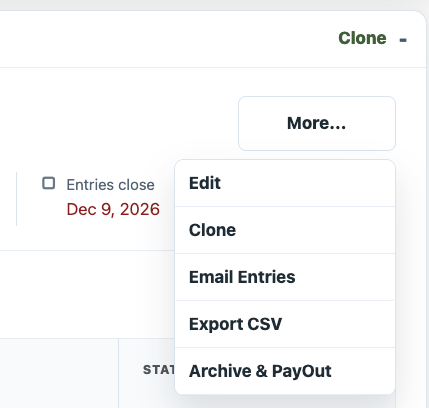
Open My Dashboard and select Show Manager. You can clone from either Open Shows or Archived Shows.
- Collapsed Show Card: select Clone beside the show name.
- Expanded Show Card: open More... and select Clone.
You do not need to archive a show before cloning it.
What gets copied
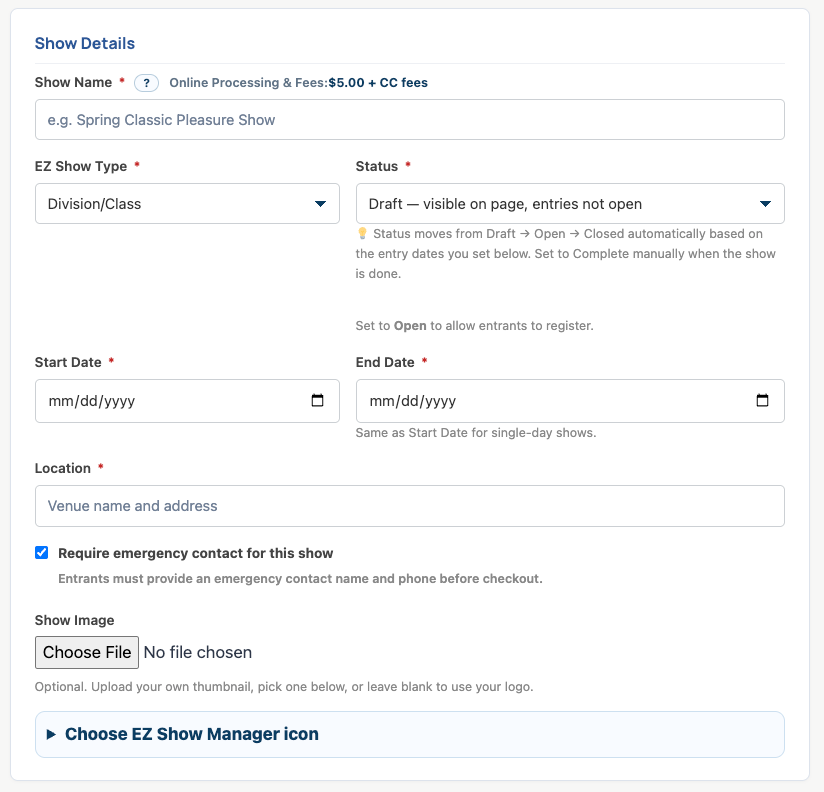
The Clone Show form is prefilled with the reusable setup from the original show, including the applicable:
- Show name, show type, location, and show image
- Pricing model, prices, and member-pricing settings
- Class structure, divisions, classes, and their order
- Add-ons and additional questions
- Emergency-contact requirement
- Specialized configuration used by the selected show type
The copied settings remain editable in the new-show form, subject to the rules for that show type.
You must choose new Start, End, Entry Open, and Entry Close dates for the cloned show.
What does not get copied
A clone does not copy the original show's activity or money. The new show begins with no:
- Pending or active entries
- Entrant documents, entry numbers, or entry notes
- Placings, scores, times, or other results
- Public show-day notes or exhibitor email history
- Payments, refunds, Cash Box activity, payout, or financial history
The new show starts as a Draft. The Show Manager remains a secretary for the new show; review the Show Secretary section if another person should also be assigned.
Review the new show before saving
Because the form intentionally brings forward much of the old setup, check every section before creating the new show. At minimum, update or confirm:
- Show Name: change it when the new event should have a different name.
- Start and End Dates: choose the new event dates.
- Entry Open and Close Dates: choose when entries should open and close for the new event.
- Location: confirm the venue name and address.
- Pricing: review entry fees, class or division prices, member discounts, and add-ons.
- Class Structure: review every division and class before creation.
- Questions and Requirements: check additional questions, emergency contact, waiver, health-record expectations, entry limit, and additional secretary.
Choose a future Entry Open Date so the cloned show stays in Draft while you check it. After entries open or a paid online entry is received, editing is restricted.
Save the clone
After reviewing all sections, select Create Show. EZ Show Manager creates the new show and its public entry and results pages. The original show and all of its records remain unchanged.