
Connecting Stripe for Direct Deposit
Connect a supported U.S. or Canadian Stripe account so EZ Show Manager can send your show payouts by direct deposit.
About 6 minutes · Reviewed for EZSM 5.2.539Before you begin
Complete your organization information under Show Manager → Settings before starting Payment Setup. EZ Show Manager cannot create the Stripe connection until your manager page has been set up.
Stripe may ask for different information depending on whether you are registering as an individual, business, club, nonprofit, or other organization. Have the following available:
- Legal individual or registered organization name
- Business type and business address
- Tax or identity information requested by Stripe
- Authorized representative or account-owner information
- A bank account that can receive payouts in the country selected for your EZ Show Manager account
- Identification or organization documents if Stripe requests verification
EZ Show Manager sends you to Stripe's secure onboarding pages. Bank login credentials and complete bank-account credentials are handled by Stripe and are not stored by EZ Show Manager.
1. Confirm your account country
- Open My Dashboard.
- Select Account Settings.
- Under Contact, choose United States or Canada.
- Select Save Changes.
This setting tells EZ Show Manager which country to use when it creates the connected Stripe account. It also controls which banks and banking options Stripe offers during setup.
The Stripe account and its receiving bank must use the correct country. If Stripe was created for the wrong country, update the country in Account Settings, disconnect the incorrect Stripe connection, and then start Payment Setup again.

2. Open Payment Setup
- From My Dashboard, open Billing/Payments.
- Select Payment Setup.
- Select Set Up Direct Deposit.
The button briefly displays Connecting…, then redirects you to Stripe. If you already started setup, the button may instead say Continue Setup, Fix Payment Account, or Check / Continue Setup.
3. Complete Stripe's secure onboarding
Follow each Stripe screen and supply the information requested for the person or organization receiving the payouts. Stripe may ask you to:
- Confirm your email address and telephone number
- Choose an individual or organization account type
- Enter legal, tax, ownership, or representative information
- Agree to the Stripe service agreement
- Select or enter the receiving bank account
- Upload identity or business-verification documents
- Review and submit the completed information
The available bank list is based on the country used to create the Stripe account. A Canadian account should be offered Canadian banking choices; a U.S. account will show U.S. choices.
If you leave Stripe before finishing, return to Billing/Payments → Payment Setup and select Continue Setup.
4. Return to EZ Show Manager
After you submit Stripe's onboarding form, Stripe returns you to Payment Setup. EZ Show Manager checks the connected account and displays its current payout-readiness message.
Submitting the form does not always mean verification is finished immediately. Stripe may approve the account at once, continue reviewing it, or request more information.
Understanding the Payment Setup messages
- Not Set Up: No Stripe account has been connected. Select Set Up Direct Deposit to begin.
- Setup In Progress: A Stripe account was created, but onboarding has not been completed. Select Continue Setup.
- Verifying: Stripe has the submitted information but has not enabled payouts yet. Check again later and watch for requests from Stripe.
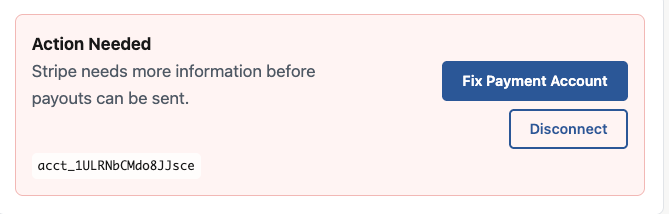
- Action Needed: Stripe requires additional or corrected information, or the account has a restriction. Select Fix Payment Account and complete the requested steps.
- Unable To Check: EZ Show Manager could not reach Stripe at that moment. Refresh the page and try Check / Continue Setup again.
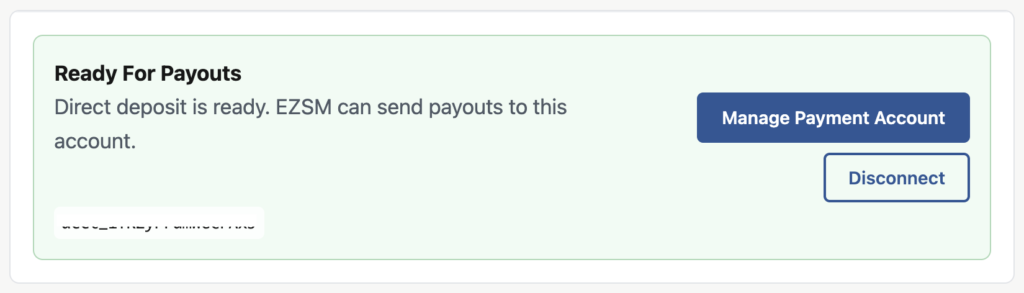
- Ready For Payouts: Stripe has enabled payouts and no current requirements are blocking them. Direct deposit setup is complete.
A connected account ID by itself is not enough. Stripe must confirm that the submitted details are complete, payouts are enabled, and no current or past-due requirement is blocking the account.
What the red dots mean
A red dot beside Billing/Payments or Payment Setup means the direct-deposit account is not fully ready. The same dot appears on the Billing/Payments heading so the unfinished item remains visible even when that menu section is collapsed.
The dot remains while Payment Setup is:
- Not started
- Still in progress
- Being verified by Stripe
- Waiting for additional information
- Temporarily unable to be checked
The red dots disappear automatically after Stripe reports Ready For Payouts. You do not need to dismiss them manually.
During normal setup or verification, the dot simply shows that the task is unfinished. Open Payment Setup to read the specific status message and next action.
Managing a completed Stripe account
When the status is Ready For Payouts, select Manage Payment Account to open the connected Stripe account. Use Stripe to review verification requests, payout scheduling, receiving-bank information, and transfers from the Stripe balance to the bank.
EZ Show Manager sends a show's approved payout to the connected Stripe account after the show is completed and Archive & Pay Me is submitted. Stripe then handles delivery to the receiving bank according to that account's availability and payout settings.
Disconnecting or changing the account
Select Disconnect only when you need to replace an incorrect connection, including an account created for the wrong country. Disconnecting removes that Stripe connection from EZ Show Manager; it does not by itself delete the Stripe account.
After disconnecting, the red dots return and direct-deposit payouts are unavailable until a new account reaches Ready For Payouts.
If setup does not work
- Only U.S. banks appear for a Canadian manager: Confirm Account Settings says Canada. If the connected Stripe account was originally created as U.S., disconnect it and reconnect after saving Canada.
- Country mismatch message: The country saved in EZ Show Manager differs from the country of the connected Stripe account. Disconnect and reconnect using the correct saved country.
- Complete your manager page setup message: Finish Show Manager → Settings, then return to Payment Setup.
- Action Needed: Open Stripe through Fix Payment Account and complete every requested item.
- Verifying: Stripe is reviewing the account. Watch the Stripe account and email for a request for more information.
- Unable To Check or Connection failed: Refresh the page and try again. If it continues, contact EZ Show Manager support with the exact message shown.
Do not send bank numbers, passwords, tax identification numbers, or identity documents through a support message. Complete sensitive requests only on Stripe's secure pages.