
Contact the Show Manager, Request a Refund, or Scratch
Use your My Shows card to contact the organizer about an entry or scratch without a refund. Refund requests must be sent to the Show Manager.
About 4 minutes · Reviewed for EZSM 5.2.539Open the entry in My Shows
- Log in and open My Dashboard.
- Select My Shows.
- Select the show card to expand it.
- Select More….
The menu can include Scratch, Contact Show Manager, View Results, and Archive, depending on the show and entry status.
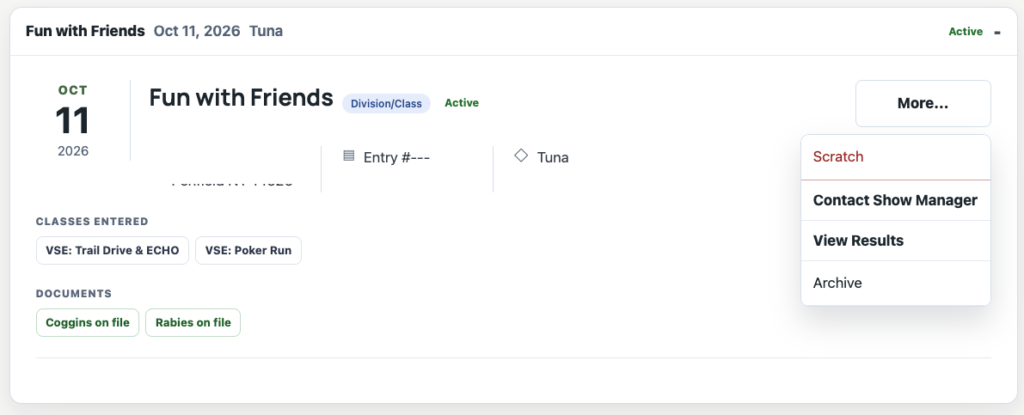
Contact the Show Manager
Select Contact Show Manager to open a new message in your email application. EZ Show Manager prepares the subject and includes identifying entry information such as the show, date, entrant, account email, horse, and entry selections.
- Add your question or request to the prepared message.
- Review the recipient and entry information.
- Send the message from your email application.
Use this option for questions about the schedule, paperwork, entry changes, show rules, scratches, or refunds.
Selecting Contact Show Manager prepares the message, but you still need to select Send in your email application.
Request a refund
Exhibitors do not have a direct refund button. The Show Manager controls the event's refund policy and must review and approve a refund request.
- Open More… on the entry card.
- Select Contact Show Manager.
- Explain that you are requesting a refund and include the reason.
- Wait for the Show Manager to confirm whether the request qualifies under the show's refund policy.
Scratching from My Shows does not request or issue a refund. If you want the organizer to consider a refund, send the request first.
When an approved full online refund is processed, it is returned to the original credit card. Allow 5–10 business days for the credit to appear, depending on the card issuer.
Partial refunds and payments collected by cash, check, or another off-platform method must be handled directly by the club or Show Manager, usually by check or cash.
Scratch without a refund
Use Scratch when you need to withdraw the entry and are not requesting a refund through the dashboard.
- Open More… on the entry card.
- Select Scratch.
- Read the confirmation explaining that no refund will be issued.
- Confirm the scratch.
The scratch is recorded immediately and the Show Manager and Show Secretary are notified automatically. You cannot undo the scratch yourself from My Shows.
For an active Division/Class entry, the applicable classes are marked SC. The scratched entry is moved out of your active My Shows list and remains available with your scratched-entry history.
Archive is not the same as Scratch
Archive only moves the card out of your active My Shows list. It does not withdraw you from the show, change the organizer's entry list, or request a refund. An entry archived from your dashboard can be restored to My Shows.
Use Scratch to withdraw. Use Contact Show Manager to ask about a refund or any entry change that requires the organizer's help.