
Create Your First Show Manager Account
Sign up for a free Show Manager account, then finish the required dashboard setup before creating your first show.
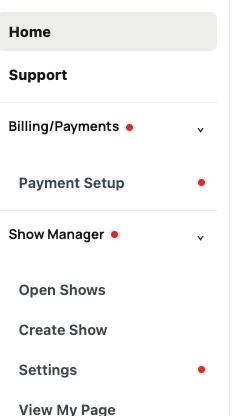
About 5 minutes · Reviewed for EZSM 5.2.537After signing in, a red dot means that part of your account still needs attention. Complete every item marked with a red dot before creating your first show.
1. Create your account
Open the Show Manager signup page and complete the Account Information form.
- Choose a username.
- Enter your first and last name.
- Create and confirm a strong password.
- Enter and confirm your email address.
- Answer the short horse question used to prevent automated signups.
- Read and agree to the Terms of Service.
On the signup form, an asterisk (*) identifies a required field. The form cannot be submitted until every required field is complete.
2. Sign in and check the dashboard menu
After registration, sign in and open My Dashboard. Look through the menu for red dots.
3. Complete Show Manager Settings
Open Show Manager → Settings when it has a red dot. Complete your organization and public-page setup, then save your changes. This creates the manager page used for your shows.
Organization
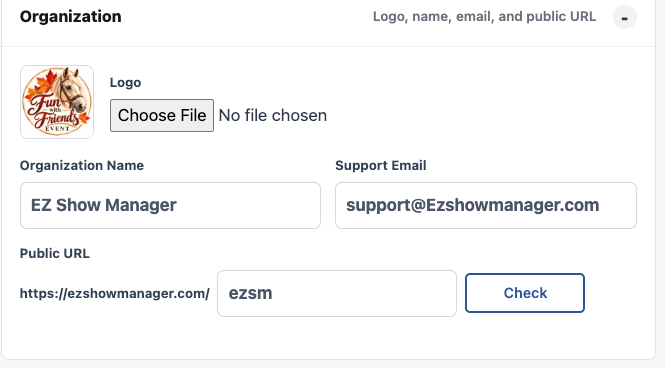
Add your logo, organization name, support email, and public URL. Use Check to confirm that the public URL is available.
Page Background
Choose a preset or custom background color for the area around the content on your public show page.

Health Records
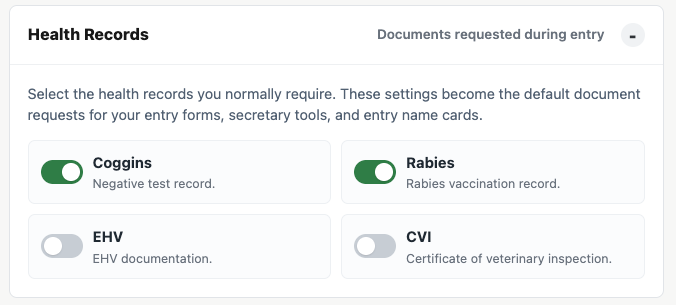
Select the records you normally require, such as Coggins, Rabies, EHV, or a Certificate of Veterinary Inspection. These choices become the defaults for new shows and can still be changed for an individual show.
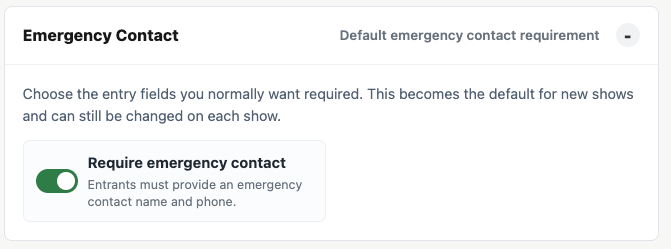
Emergency Contact
Turn this on when entrants should be required to provide an emergency-contact name and phone number. This also becomes a default that can be changed for each show.
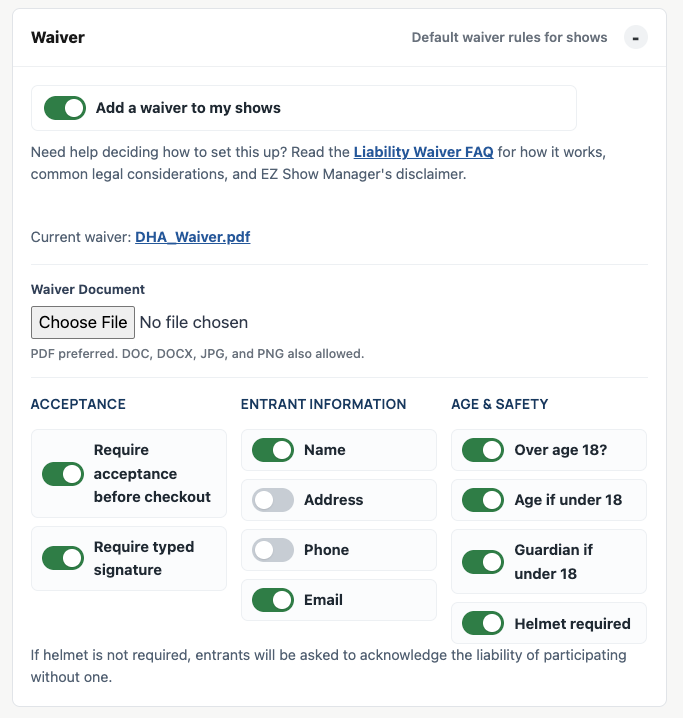
Waiver
If your shows use a liability waiver, upload the default document and choose the acceptance, entrant-information, age, and safety requirements that should normally apply.
4. Complete Payment Setup
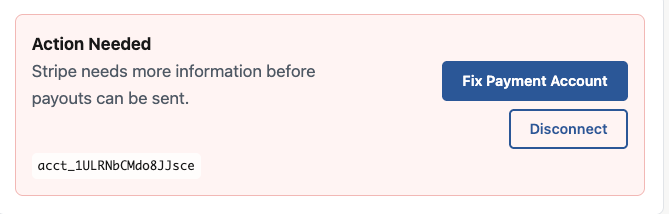
Open Billing/Payments → Payment Setup, select Set Up Direct Deposit, and complete Stripe's secure onboarding process. Direct deposit must be ready so EZ Show Manager can send your show payouts.

EZ Show Manager does not store your bank-account or identity-document details. Stripe collects and verifies that information.
5. Create your first show
When the setup is complete, the red dots disappear. You can then open Show Manager → Create Show and begin creating your first show.