
Creating a Clinic
Create a one-day or multi-day clinic, set the number of riders and auditors each day, and offer the registration choices and prices that fit your event.
About 7 minutes · Reviewed for EZSM 5.2.537Start a new clinic
- Open My Dashboard.
- Select Create a Show.
- Under EZ Show Type, choose Clinic.
- Complete each section of the form, then select Create Show.
Choose a future Entry Open Date and review the public registration page before accepting entries. This gives you time to correct dates, prices, capacities, and questions before the clinic goes live.
Complete the clinic details
Enter the information people need to recognize and attend the event:
- Show Name: The public name of the clinic.
- Clinic Type: Choose the clinic format that best describes the event.
- Status: Leave it as Draft while you finish setup and review the registration page.
- Start and End Dates: Use the same date for a one-day clinic or a date range for a multi-day clinic.
- Location: Enter the venue name and address.
- Emergency Contact: Turn this on when entrants must provide an emergency contact before checkout.
The start and end dates automatically create the clinic-day rows used for daily capacity and registration. A clinic can include up to seven days.
Set registration dates and waiver requirements
In Clinic Configuration, choose when online registration opens and closes. If your organization has a waiver on file in Show Settings, you can also require it for this clinic.
Entrants cannot register before the Entry Open Date or after the Entry Close Date.
Set the capacity for each clinic day
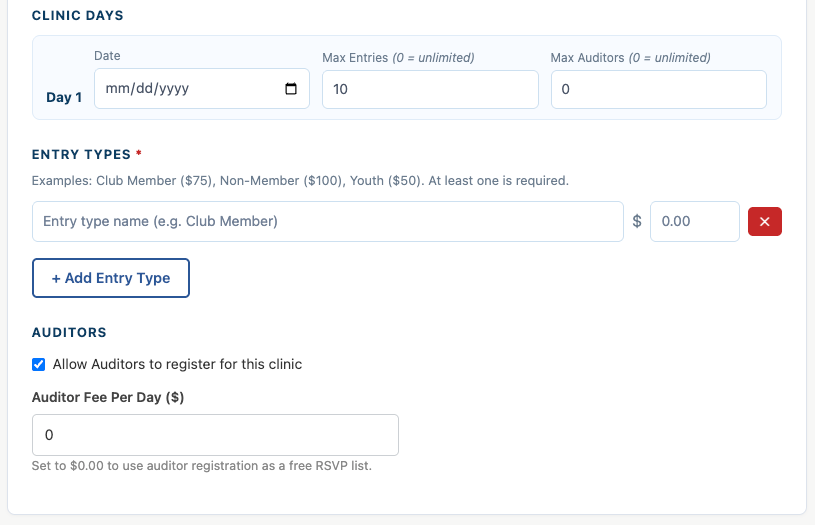
Review every day created from your clinic dates. Each day has separate limits:
- Max Entries: The maximum number of participating riders for that day. Enter 0 for no limit.
- Max Auditors: The maximum number of auditors for that day. Enter 0 for no limit.
Daily limits let you offer different capacities on different dates. When a rider day reaches its entry limit, the waitlist option becomes available for that day.
Use a specific Max Entries value when the clinician can only work with a set number of riders. The separate Managing a Waitlist article will explain what happens after a day fills.
Create entry types and prices
Add at least one Entry Type. Entry types are the registration choices shown to riders and can each have a different price.
Examples include:
- Club Member
- Non-Member
- Youth
- Private Session
- Group Session
Give each option a clear name and enter its price. Add as many entry types as the clinic needs so entrants can select the correct registration option.
Choose whether to allow auditors
Turn on auditor registration when people may attend without riding. Set the auditor fee per day, or enter $0 when auditing is a free RSVP.
The Max Auditors value entered for each clinic day controls that day's available auditor spaces. Auditor registration and attendance are covered in the separate Managing Auditors article.
Add optional extras and questions
Use Add-ons for optional or required extras such as lunch, stalls, camping, or special activities. For each add-on, provide a clear name and price.
Use Additional Questions to collect clinic-specific details that are not already part of the registration form. Keep questions short and ask only for information you will use.
Add another secretary when needed
As the Show Manager, you always keep secretary access to your clinic. Adding another secretary gives that person access too; it does not remove you.
Use Change in the Show Secretary section, enter the other person's account email, and check the account before assigning it.
Review before creating the clinic
- Confirm the clinic name, dates, location, and registration window.
- Check every clinic day's rider and auditor limits.
- Review each entry type and price.
- Confirm the waiver, add-ons, questions, and secretary access.
- Select Create Show.
- Open the public clinic page and test the registration choices before entries open.
Editing becomes restricted after registration begins or a paid online entry is received. Keep the clinic in Draft and use a future Entry Open Date until you are satisfied that the dates, capacity, pricing, and registration options are correct.