
Creating a Division/Class Show
Set up the details, entry pricing, class structure, add-ons, questions, and secretary for a standard Division/Class show.
About 8 minutes · Reviewed for EZSM 5.2.537Clinics, unmounted events, dressage shows, driven dressage, and Driving CT include specialized setup options. Those event types are covered in their own Help articles.
Start a new show
- Open My Dashboard.
- Choose Create a Show.
- Under EZ Show Type, choose Division/Class.
- Work through each section of the form, then select Create Show.
Show Details
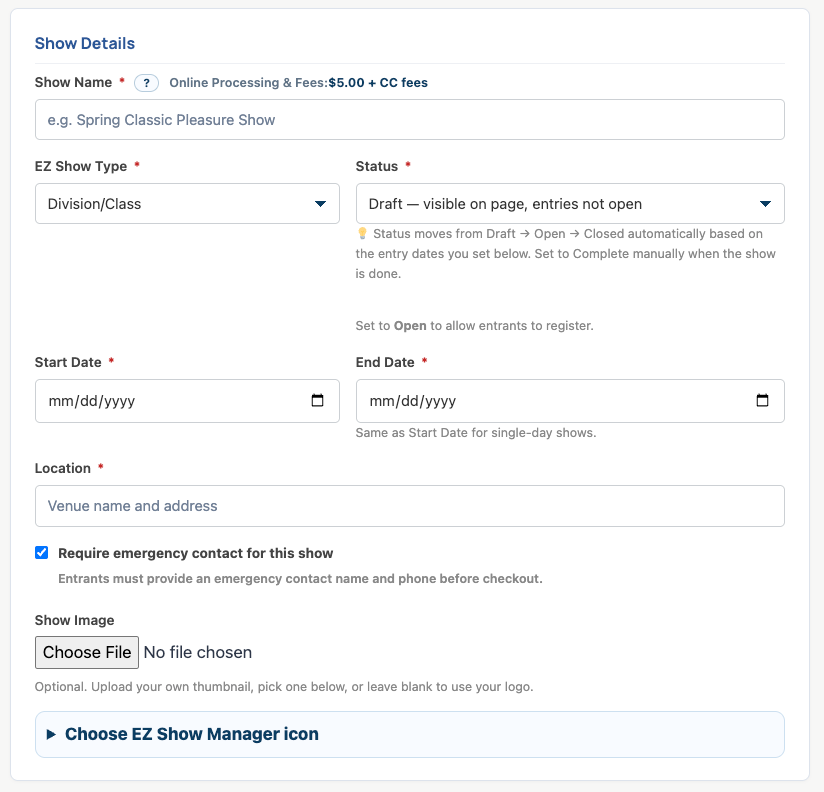
Enter the information exhibitors will use to identify your show:
- Show Name: the public name of the event. The online processing and card-fee note appears beside this field.
- EZ Show Type: choose Division/Class. The show type cannot be changed after the show is created.
- Status: Draft keeps the show visible on your page without accepting entries. Entry dates can move the show from Draft to Open to Closed automatically; mark it Complete when the event is finished.
- Start and End Date: use the same date for a one-day show.
- Location: enter the venue name and address.
- Emergency Contact: require entrants to provide an emergency-contact name and phone number at checkout.
The free Blue Ribbon upgrade adds the Show Image area shown near the bottom of this section. Blue Ribbon managers can upload a thumbnail, choose an EZ Show Manager icon, or use their organization logo.
Entry Settings
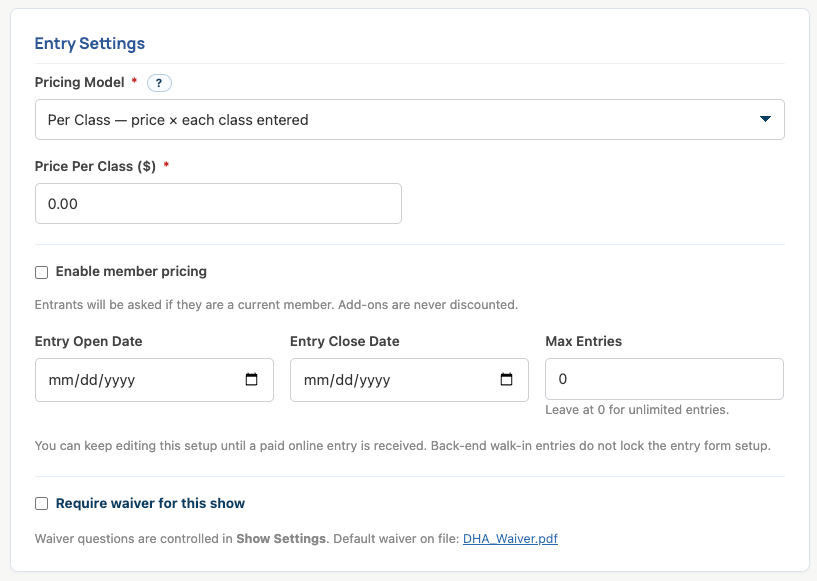
Choose how entries are priced and when registration is available.
- Pricing Model: use one flat entry price, a price for each class, individual class prices, or division pricing.
- Member Pricing: optionally offer a fixed or percentage discount to current members. Add-ons are never discounted.
- Entry Open and Close Dates: control when exhibitors can submit online entries.
- Max Entries: enter a limit, or leave the value at 0 for unlimited entries.
- Waiver: require the waiver already configured under Show Settings. If no default waiver is on file, upload one there first.
Choose a future Entry Open Date and use that time to review the public entry form. Once a paid online entry is received, the existing setup locks. Eligible Division/Class shows can still add new classes or complete new divisions while entries remain open.
Class Structure
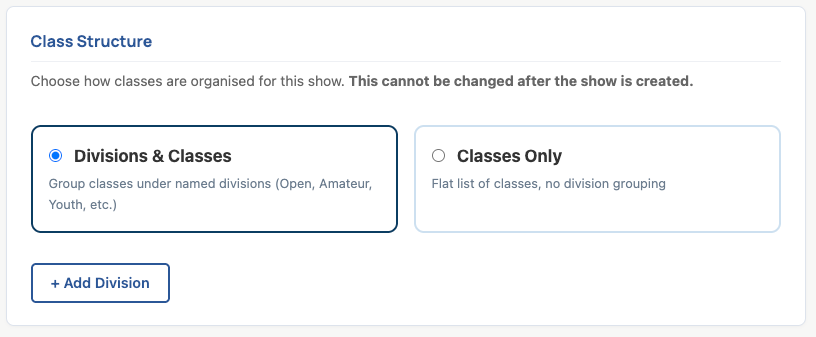
Choose the structure that matches your prize list:
- Divisions & Classes: group classes beneath named divisions such as Open, Amateur, or Youth. Select Add Division, then add the classes belonging to it.
- Classes Only: create one flat class list without division groupings. Select Add Class to build the list.
The class structure is locked when the show is created and cannot be switched later.
Add-ons
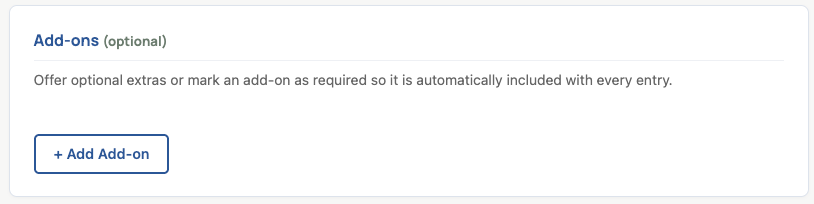
Select Add Add-on for extras such as stalls, grounds fees, meals, special activities, or an optional nonprofit donation. An add-on can remain optional or be marked required so it is included with every entry.
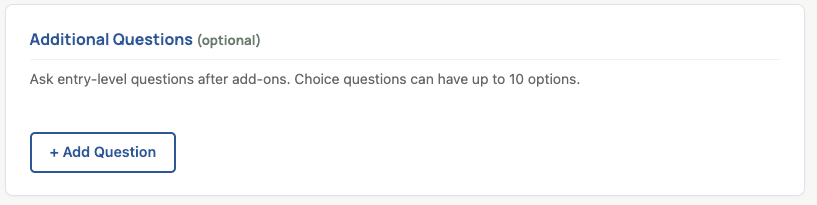
Additional Questions
Select Add Question when you need information that is not collected elsewhere on the entry form. Questions can be optional or required, and choice questions can include up to 10 answer options. Exhibitors answer these questions after selecting add-ons.
Show Secretary
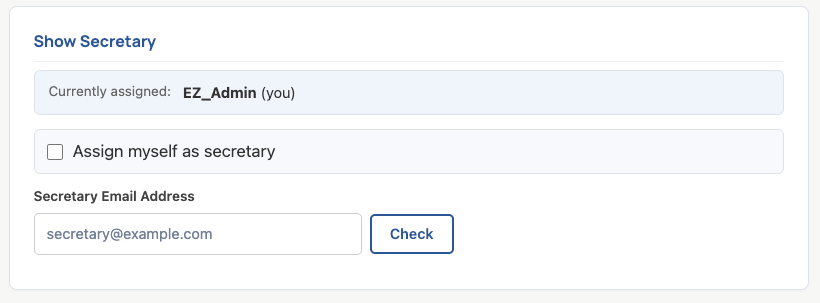
The Show Manager is always a secretary for their own show and keeps full secretary access. Select Change to open the panel shown below and add or change an additional secretary.
- To run the show without an additional secretary, select Assign myself as secretary.
- To add another secretary, enter their email address and select Check.
- If an active secretary account is found, confirm the assignment.
- If no active account is found, enter the person's name and add them as the secretary. EZ Show Manager creates their account and emails login instructions.
Assigning another person gives that person secretary access in addition to the Show Manager. It does not transfer the show or remove the Show Manager's secretary access.
Create the show
Review each section, then select Create Show. When the show is saved, EZ Show Manager reminds you to review everything before entries open and paid orders begin locking the existing setup.
- Set the Entry Open Date far enough in the future to allow time for testing.
- Open the show from your dashboard and review the public entry form.
- Correct the show details, pricing, classes, add-ons, questions, and secretary assignment before entries open.
After a paid online entry is received, existing details, prices, questions, classes, and divisions cannot be changed. The safe-addition tools described in Modifying Existing Shows are the exception.