
Custom Horse Show Icons
Give each show its own thumbnail by uploading a custom image or choosing from the built-in EZ Show Manager icon library.
About 4 minutes · Reviewed for EZSM 5.2.537Where to find Show Image
- Open the Show Manager Dashboard.
- Create a new show, or edit an existing show while it is still editable.
- Find Show Image under Show Details.
- Upload your own image, expand Choose EZ Show Manager icon, or leave the selection blank to use your organization logo.
- Finish the show setup and save the show.
The Show Image controls are available to Blue Ribbon Show Managers.
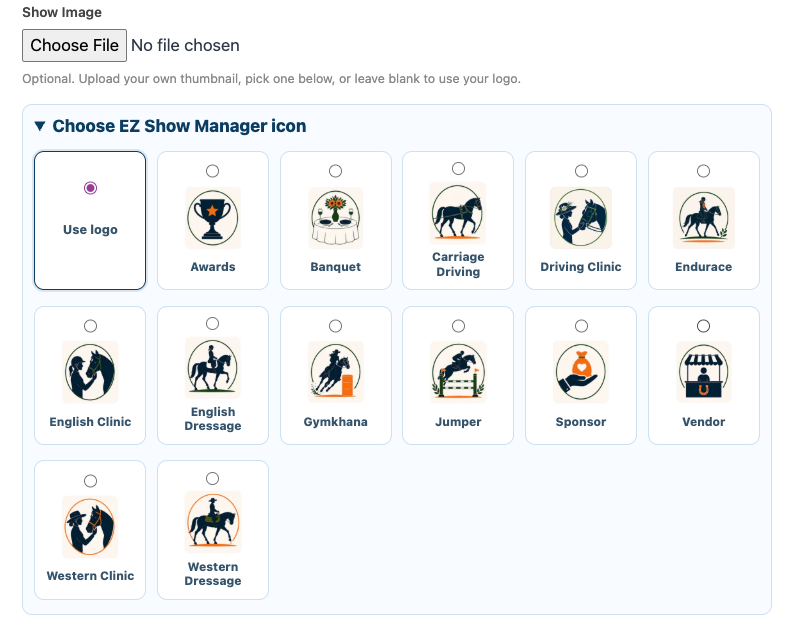
Upload your own image
Select Choose File to upload a custom thumbnail for the show. Useful choices include:
- A show or event logo
- A sponsor graphic
- Custom event artwork
- A clear photo that represents the event
A simple square image generally works best because show cards display the artwork in a compact thumbnail area.
Uploading a custom image replaces any built-in icon previously selected for that show.
Choose a built-in icon
Expand Choose EZ Show Manager icon, then select the image that best represents the event. The current library includes artwork for:
- English and Western Dressage
- Carriage Driving
- English, Western, and Driving Clinics
- Gymkhana, Jumper, and Endurance events
- Awards, Banquets, Sponsors, and Vendors
Selecting a built-in icon replaces a custom show image. The icon library may grow as additional event artwork is added.
Use your organization logo
If the show does not need its own image, choose Use logo or leave Show Image blank. Supported show cards will automatically fall back to the organization logo saved under Show Manager → Settings → Organization.
A custom uploaded show image is used first. If there is no upload, the selected built-in icon is used. If neither is selected, the organization logo is used.
Where the image appears
The selected show image or built-in icon appears on supported visual show cards, including:
- Blue Ribbon entry cards using a Small Cards or Large Cards layout
- Blue Ribbon results cards using a Small Cards or Large Cards layout
- Custom Show Cards added through Page Builder
- Applicable public EZ Show Manager calendar cards
A Page Builder Featured Card uses the image uploaded directly inside that Featured Card section. It does not automatically use the show’s Show Image.
Simple list layouts do not display a show thumbnail.
Change or remove an image
Return to the show’s edit form while the show is still editable. You can upload a replacement, select a different built-in icon, or remove the current image and return to the organization logo.
If the show is closed, complete, or locked after receiving a paid online entry, its setup can no longer be edited. Choose the show image before the entry-open date whenever possible.
Why use show icons?
- Help visitors recognize different events quickly.
- Separate clinics, shows, meetings, and special events visually.
- Give sponsors or featured events additional visibility.
- Keep Blue Ribbon card sections polished and easy to scan.