
Customizing Your Enhanced Show Page
Use the Blue Ribbon Page Builder to turn your public EZ Show Manager page into a branded home for your organization, open entries, results, and optional member or booking tools.
About 8 minutes · Reviewed for EZSM 5.2.537Open the Page Builder
- Sign in and open My Dashboard.
- Open your Show Manager tools.
- Select Page Builder.
The Page Builder is available after the free Blue Ribbon Show Manager upgrade is active.
For an example of a completed page, visit the EZ Show Manager Blue Ribbon page.
Choose your page style
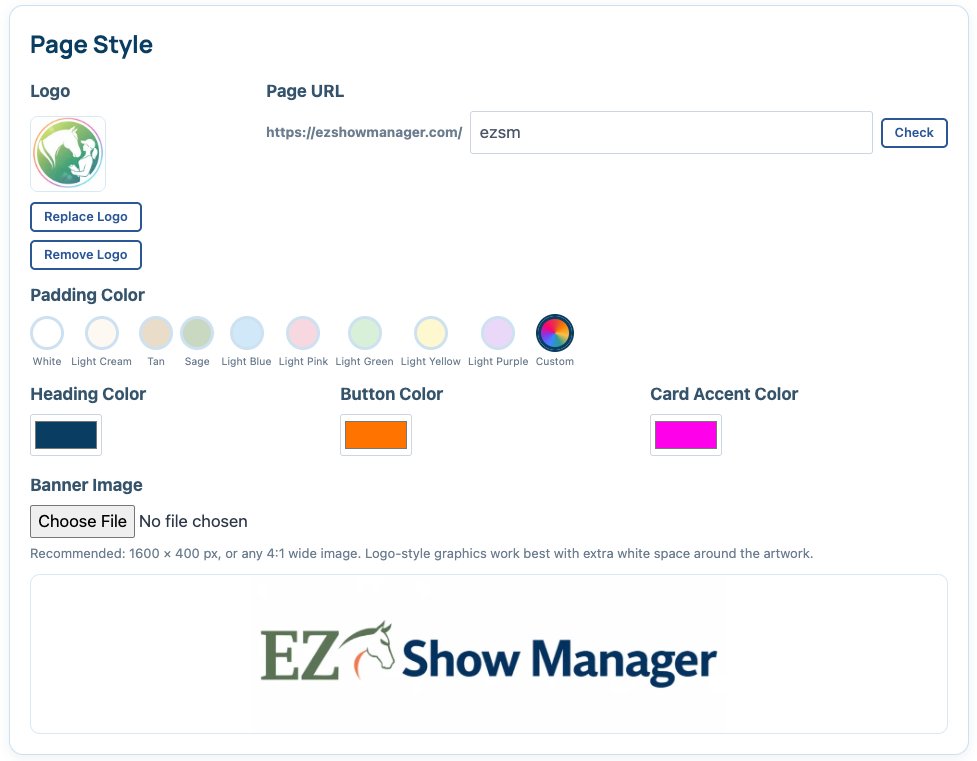
The Page Style area controls the colors used throughout your public page:
- Heading: The color used for section headings.
- Button: The color used for public action buttons.
- Accent: The optional stripe color used on sections and show cards.
- Padding Color: Choose a provided color or use the custom color picker for the area surrounding the page content.
Under Banner, upload a wide image for the top of the page. A 4:1 image around 1600 × 400 pixels is recommended.
Your organization logo and public Page URL are managed under Show Manager → Settings → Organization, not inside the Page Builder.
Add and arrange custom sections
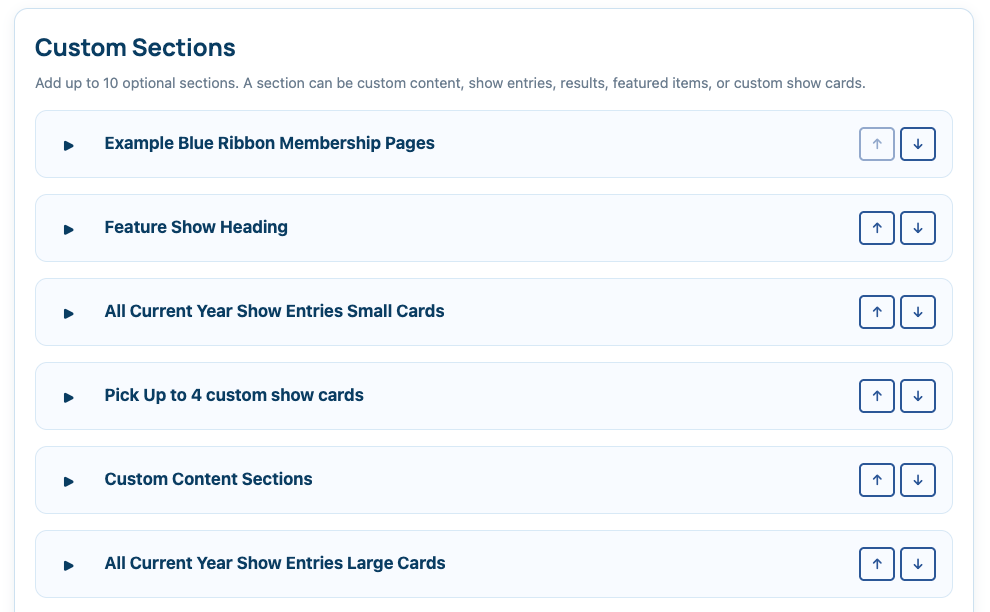
You can add up to 10 sections. Select + Add Section for a new one, use the up and down arrows to change its position, or select the × to clear and remove it.
Each section can have its own heading, body text, image, and display type. This allows one public page to serve as an organization introduction, show calendar, results archive, and information center.
Current section types
- Custom Content: Add your own heading, text, links, phone numbers, email addresses, and image. Use this for announcements, sponsors, directions, contact information, rules, or any other organization content.
- Entries - List: Display shows currently available for entry in a simple list.
- Entries - Small Cards: Display open entry opportunities as compact cards.
- Entries - Large Cards: Display open entry opportunities as larger visual cards.
- Results - List: Display completed show results in a list.
- Results - Small Cards: Display completed results as compact cards.
- Results - Large Cards: Display completed results as larger visual cards.
- Featured Card: Highlight one selected show and choose whether its button says Enter Show, Register Now, Sign-up, Results, or View.
- Custom Show Cards: Hand-pick up to four shows for one section and choose the button behavior for each card.
Memberships - List and Memberships - Cards appear when Blue Ribbon Memberships is enabled. Booking - Book Now appears only when Booking access is enabled.
Entry sections use the shows currently open for entry. Results sections use completed shows and provide access to older results when available. You do not need to rebuild these sections for every show.
Customize an individual section
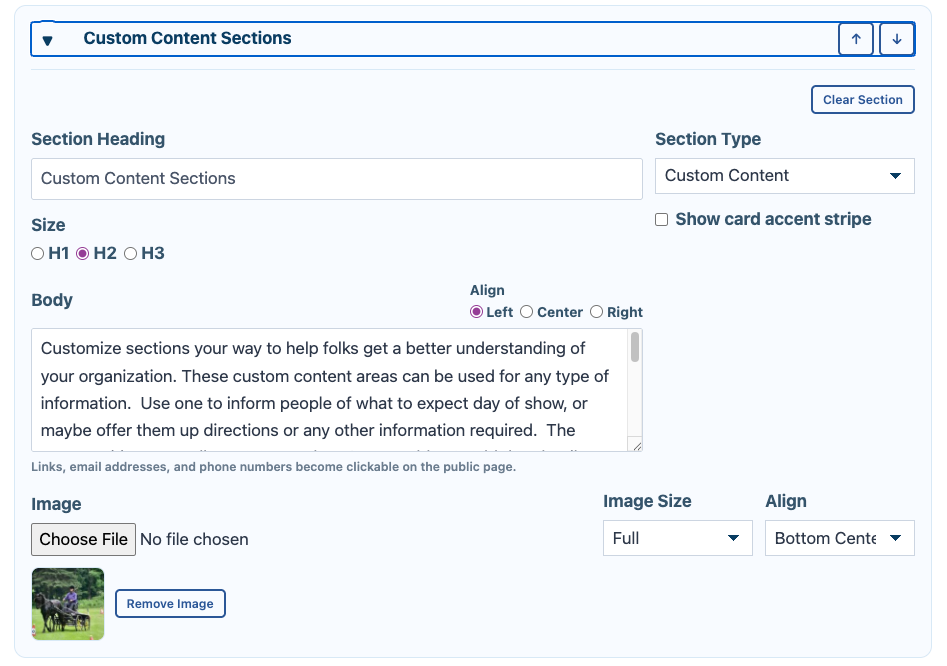
Expand a section to adjust the details that apply to it:
- Enter a section heading and choose H1, H2, or H3 heading size.
- Add body text and align it left, center, or right.
- Type a web address, email address, or phone number in the body; it becomes clickable on the public page.
- Turn the card accent stripe on when you want that section emphasized.
- Upload a section image and choose Thumbnail, Medium, or Full size.
- Position the image at the top or bottom and align it left, center, or right.
- Choose the show and button wording for Featured Card or Custom Show Cards sections.
- Choose Results or View as the button wording for results sections.
Not every setting changes every section type. For example, selecting a show is used by Featured Card, while card-selection controls are used by Custom Show Cards.
Show-card images
Blue Ribbon managers can give each show its own thumbnail when creating the show. You may:
- Upload your own show image.
- Choose one of the built-in EZ Show Manager icons.
- Leave the image blank to use the organization logo.
These images are used by the applicable card layouts on the public page.
Save and review your page
- Select Save Page Builder.
- Open the public page and check each section and button.
- Review the page on both a computer and a phone.
- Return to Page Builder whenever you want to edit or reorder the content.
Changing a color, image, section, or order does not update the public page until you select Save Page Builder.
Ideas for your page
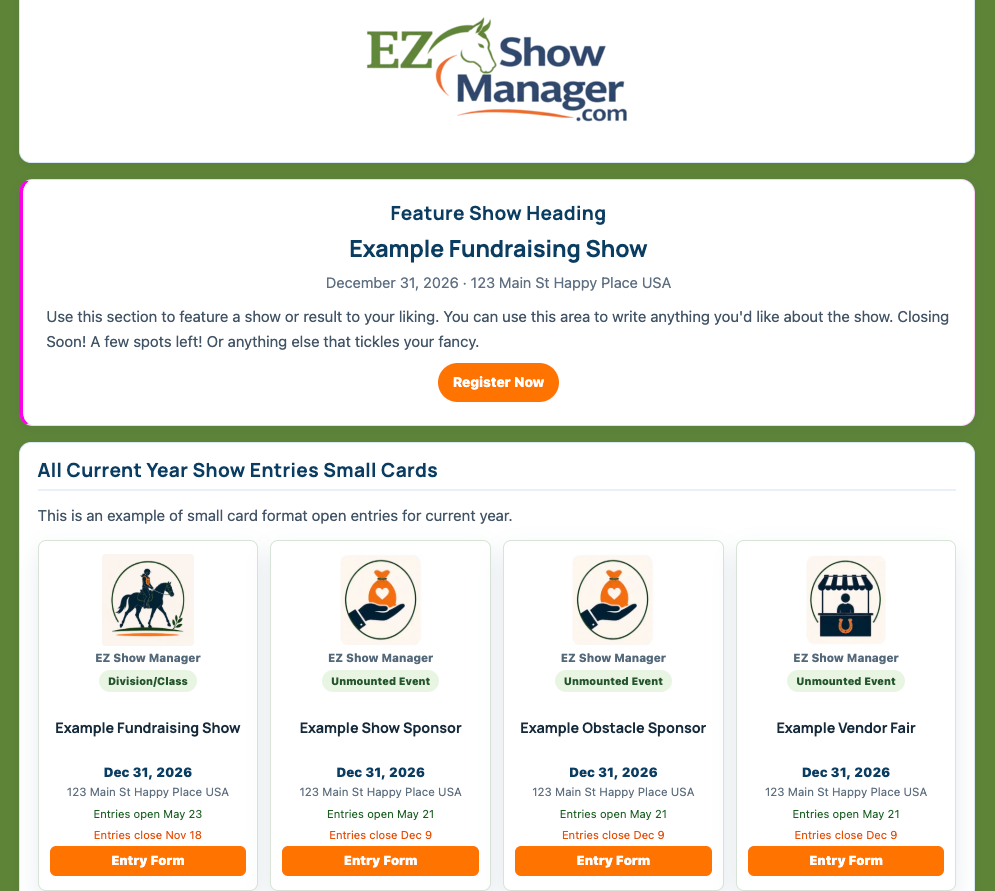
- Welcome visitors with a banner and a short About section.
- Feature the next important show above the full Entries section.
- Add sponsor logos or acknowledgments in Custom Content sections.
- Keep current entries and results in separate card sections.
- Add contact information, policies, or useful links near the bottom.