
Day of Show: Running Your Event
Use the Secretary Show Card to organize the running order, handle day-of changes, communicate with exhibitors, and publish results as the show progresses.
About 6 minutes · Reviewed for EZSM 5.2.539Before the first class
Give yourself time to review the show before activity begins:
- Review every Pending Entry, including required documents and waiver status.
- Assign or confirm each entry number, then approve the entry.
- Expand the Active Entries lists and confirm that entries appear in the correct divisions and classes.
- Drag divisions, classes, and entries into the planned running order.
- Enter Group, Ring, or Time information when your show uses those fields.
- Open the public Results Page and confirm the information exhibitors will see.
If Group, Ring, Time, and Score are left empty, the Results Page displays only Entry #, Competitor, Horse, and Place. Each additional field appears after you enter data in it.
Post an announcement
Select Notes in the Secretary Show Card header to post an announcement on the public Results Page. Use it for messages such as:
- First class starts at 9:00 AM
- Mandatory safety meeting at 8:30 AM
- Ring or schedule delays
- Weather updates or cancellation information
Normal notes display in yellow. A note containing the word canceled displays in red.
Email exhibitors when needed
Select Email to contact all active entries, pending entries, entries missing documents, or a selected division or class. You can insert helpful account, entry-form, results, and contact links, preview the message, and send yourself a test before sending it to exhibitors.
Handle walk-in entries
Select + Walk-In Entry to add a day-of entry directly to Active Entries.
- Enter the competitor, entry number, horse, and available contact information.
- Confirm the waiver and required health records when applicable.
- Select the divisions or classes, add-ons, and any additional answers.
- Review the calculated amount to collect.
- Collect the on-site payment and select Add to Active List.
The calculated amount is collected on site and tracked as cash activity. It is not included in the show's online Stripe payout.
Find entry details quickly
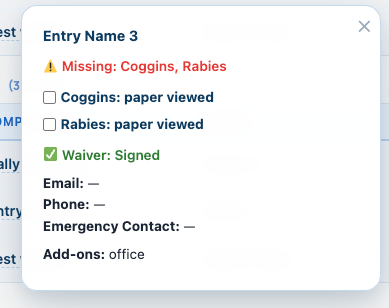
Select a competitor's name in Pending or Active Entries to open the entry-detail bubble. Depending on the show, it can include:
- Email, phone, and emergency contact
- Waiver status
- Required health-document status
- Add-ons and additional-question answers
- Entry notes
Manage the running order
Use the drag handles to reorder divisions, classes, or entries. Use Expand All and Collapse All to control the full list, or open and close individual sections as needed.
You can also select a column heading to sort the visible rows by Entry #, Competitor, Horse, Group, Ring, Time, Score, or Place.
Handle add/drop changes
Select the ± control beside an active entry to add or drop a class or division. The window shows the applicable amount to collect or refund.
- Add: collect the displayed fee and add the class or division.
- Drop + Refund: remove the class or division and record the cash refund.
- Drop, No Refund: remove it without changing the Cash Box.
These are cash-only show-day adjustments. Work with the club treasury when a different partial refund arrangement is needed.
Record results during the show
Enter the applicable Group, Ring, Time, Score, and Place values directly in Active Entries. Changes save from the table without a separate page-level Save button.
The Place field accepts numbered placings and short show codes such as CH, RC, DQ, or SC. Use the ↩ control when an online entry must be returned to Pending for additional review.
Keep the Results Page current
Saved running-order changes and results feed the public Results Page. Supported desktop results views check for updates approximately every 15 seconds. Mobile visitors may need to refresh manually.
Select Results from the Secretary Show Card at any time to check the public view, and select Refresh when the Secretary Show Card needs the latest entry information.
Before leaving for the day
- Confirm that all placings and show-day fields are correct.
- Check that the public Results Page shows the expected results.
- Reconcile collected walk-in and add/drop money with the displayed Cash Box total.
- Resolve or communicate any remaining pending entries, refund requests, or missing information.
The Show Manager can then complete the separate archive and payout process when the show is ready.