
Modifying Existing Shows
Understand what can be edited before entries arrive and how to safely add classes or divisions after a Division/Class show has paid entries.
About 5 minutes · Reviewed for EZSM 5.2.537Before a paid online entry is received
Open My Dashboard → Show Manager, expand the Show Manager Show Card, and select Edit. You can review and update the show's details, dates, prices, entry settings, divisions, classes, add-ons, questions, and secretary assignment.
A show created as Classes Only cannot later be changed to Divisions & Classes, and a Divisions & Classes show cannot be changed to Classes Only.
Why the existing setup locks
After the first paid online entry is received, the Edit button changes to View Details. Existing show details, prices, questions, divisions, and classes are preserved so entrants are not registered under different versions of the same show.
The lock also protects completed orders and keeps the class selections connected to those orders understandable for the Show Manager, secretary, and exhibitor.
What you can still add
While entries remain open, a locked Division/Class show can still add new opportunities without changing anything already purchased. You may add:
- One or more new classes to an existing division
- One or more complete new divisions, each with its own classes
- Classes for existing divisions and new divisions in the same update
Existing classes and divisions cannot be renamed, repriced, moved, or removed after the show is locked.
Add the new classes or divisions
- Open My Dashboard → Show Manager.
- Expand the show card and select View Details.
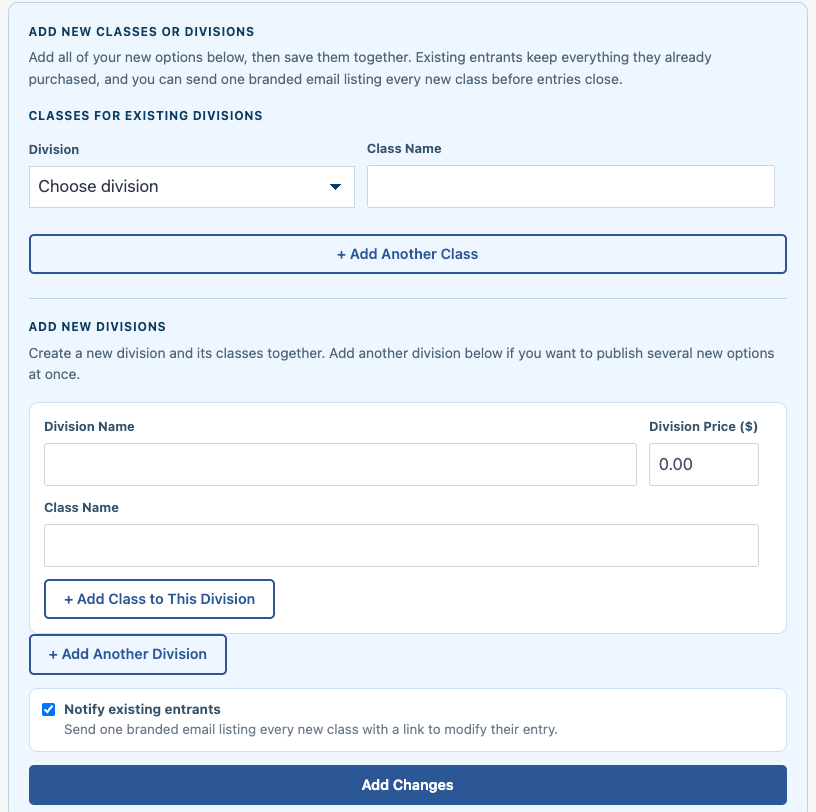
- Scroll to Add New Classes or Divisions.
- For a class in an existing division, choose the division and enter the new class name and price when that pricing model requires one.
- Select + Add Another Class to add more existing-division classes in the same update.
- To create a new division, enter its name, its price when applicable, and at least one class.
- Use + Add Class to This Division or + Add Another Division as needed.
- Review the notification choice and select Add Changes.
All completed rows are saved together. Blank class or division rows are ignored.
How pricing is handled
New options follow the pricing model already selected for the show. Depending on that model, the exhibitor may be charged for each additional class, charged once for a new division, or owe no additional entry amount for a class included in a division already purchased.
The exhibitor sees the applicable total before completing checkout. Adding new options does not change or recalculate the original order.
Notify existing entrants
Notify existing entrants is selected by default. Leave it selected to send one branded email listing every class added in that update.
The email includes a Review My Entry link and the show team's contact information. Clear the checkbox when you want to add the options without emailing current entrants.
Classes added to existing divisions and classes belonging to new divisions are combined into the same message.
What happens when an exhibitor adds a class
The additional selection is kept separate from the original entry. If payment is required, the exhibitor completes a separate checkout. The addition then appears as its own Pending Entry line for the secretary to approve or refund.
After approval, the new classes are merged into the active entry. The additional order is also included in the Show Manager Show Card and the show's financial totals.
After entries close
Online additions stop at the Entry Close Date. The exhibitor's Modify Entry option becomes unavailable and directs them to contact the Show Secretary for changes.
Any day-of changes should be handled by the secretary through the Secretary Office and settled by cash or check when a balance or partial refund is involved.