
Posting a Public Note
Share schedule changes, safety announcements, cancellations, and other important updates directly on the public Results Page.
About 3 minutes · Reviewed for EZSM 5.2.537Post a note
- Open the correct show in the Secretary Dashboard.
- Select Notes in the Secretary Show Card header.
- Enter the message you want exhibitors to see.
- Select Save Note.
The saved message appears beneath the Secretary Show Card header and on the public Results Page. Anyone viewing the results can see it.
People who already have the Results Page open will see the note when the page next refreshes.
Standard public notes
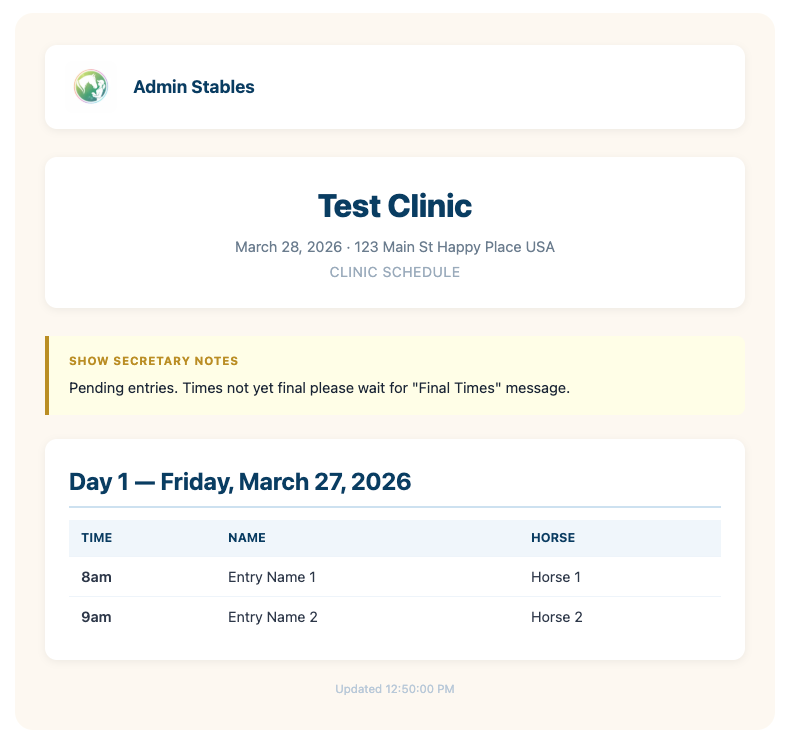
A regular message appears in a yellow notice. Public notes are useful for updates such as:
- “Class times are not final yet. Thank you for your patience.”
- “Classes are delayed by one hour.”
- “Safety meeting at 8:30 AM.”
- “Division 2 has moved to Ring 3.”
Cancellation notes display in red
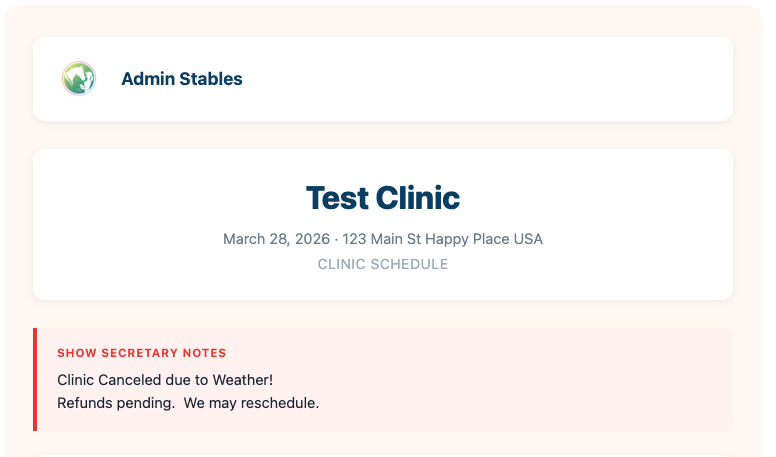
If the message contains the word Canceled, the note changes from yellow to red so the cancellation is easier to see.
The red cancellation style looks for the U.S. spelling Canceled. Include that exact word in the message when you want the note to display in red.
Update or remove a note
To update the announcement, select Notes, edit the existing message, and select Save Note again.
To remove it, open Notes, delete all of the text, and select Save Note. The notice is removed from both the Secretary Dashboard and the public Results Page.