
Raw Data for Your Treasurer or Finance Department
Download a CSV file containing the entry, customer, order, and payment details recorded for one show.
About 4 minutes · Reviewed for EZSM 5.2.537What is a CSV export?
A CSV is a spreadsheet-compatible file containing the raw information saved for a show. Your treasurer, bookkeeper, or finance department can open it in Excel, Google Sheets, Apple Numbers, or another spreadsheet program.
The export creates one row for each included entry and one column for each available piece of information. It is useful for reconciliation, internal recordkeeping, audit support, and creating your own reports.
Export a show's data
- Open My Dashboard → Show Manager.
- Find the show under your open or archived shows.
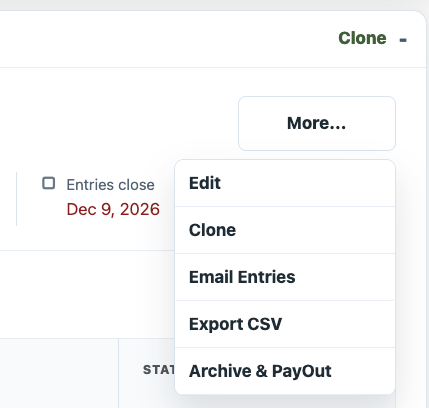
- Select Export CSV on the show card.
- Your browser downloads a file named for the show and the export date.
Export a new copy whenever you need updated information. Each download is a snapshot of the data recorded at that time.
Information included in the CSV
The exact columns vary with the show type, setup choices, and information submitted by entrants. The export can include:
- Show details: Show ID, show name, show type, show date, and export date and time
- Entry details: Entry ID and number, entry status, submission and approval dates, online or walk-in indicator, notes, and related internal references
- Entrant information: Name, email address, phone number, and emergency contact
- Billing address: Address lines, city, state or province, postal or ZIP code, and country associated with the entry's order or customer account
- Order and payment details: Original order ID, status and total; additional-purchase order IDs, statuses, gross, refunded and net totals; payment status, recorded platform fee, member-pricing selection, and refund information when applicable
- Horse information: Horse ID, horse name, saved horse snapshot, submitted health-document references, and document-review status
- Entry selections: Every show class receives its own column. An X identifies each class the entry is enrolled in. Division names are included in class-column headings when applicable, followed by added-class purchase statuses and the entry's saved scheduling or sorting information.
- Add-ons: A separate column for each show add-on with its selected quantity, plus a readable combined add-on summary
- Additional questions: A separate column for each question and its answer, plus a combined answer summary
- Clinic information: Clinic days, entry types, time preferences, assigned times, and auditor selections when applicable
- Driving information: Driving division, test, scores, penalties, and placings when applicable
The export includes fields relevant to the selected show type. Division/Class exports omit clinic, dressage, and driving fields; clinic and test-based show exports include their own applicable fields instead.
Which entries are included?
The file includes valid show entries recorded in EZ Show Manager. Incomplete or unsuccessful checkout records are excluded when the entry or payment is marked pending payment, unpaid, on hold, failed, or declined.
Because the file is entry-based, one order may appear on more than one row if that order contains more than one entry.
Using the export for financial review
The CSV gives your finance team the underlying entry-level information. They can filter or sort it by entry, payment status, order, billing location, add-on, or another column needed for their work.
When one WooCommerce order covers multiple entries, its order total may be repeated on each related entry row. Group or deduplicate the data by Order ID before using Order Total to calculate collected revenue.
Use the show card and payout records for EZ Show Manager's summarized financial totals. Use the CSV when your treasurer needs to inspect, filter, or reconcile the individual records behind those totals.
Protect the downloaded file
The CSV contains personal and financial record information, including entrant contact details and billing addresses. Only share it with people who are authorized to handle your organization's records.
- Store the file in a secured location.
- Do not post it publicly or send it through an unsecured public link.
- Follow your organization's privacy, accounting, and record-retention policies.
- Delete extra downloaded copies when they are no longer needed.