
Setting Up Your Membership Account
Begin by naming the club or organization, choosing how members may belong to levels, and creating any questions that should appear on membership forms.
About 5 minutes · Reviewed for EZSM 5.2.539Before you begin
The Memberships feature must already display as Active under My Dashboard → Home → Free Account Upgrades. Memberships requires both Show Manager and Blue Ribbon access.
Have the following ready:
- The club or organization name customers should see
- Whether one person may belong to multiple membership levels
- Any questions every public membership form may need
- A general idea of the Annual, Lifetime, and Private levels you will create next
Open Membership Settings
- Sign in and open My Dashboard.
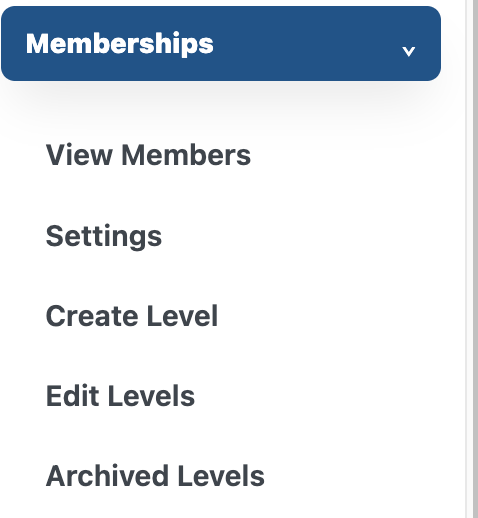
- Expand Memberships in the dashboard menu.
- Select Settings.
The Memberships menu also contains:
- View Members: Review, add, import, email, export, and organize member records.
- Create Level: Add an Annual, Lifetime, or Private membership level.
- Edit Levels: Update or archive existing levels.
- Archived Levels: Restore or permanently delete archived levels.
Set the club or organization name
- Enter the name customers should see when joining or viewing their membership.
- Select Check Availability or Check New Name.
- When the name is available, save the group or save your changes.
This becomes the membership organization name shown to customers. It may be different from a particular show name.
The name identifies the organization’s membership group throughout EZ Show Manager. Confirm spelling, capitalization, and availability before building the levels beneath it.
Choose whether multiple memberships are allowed
Turn on Multiple Memberships when the same person may need to appear in more than one level or list.
This is useful when someone has a regular paid membership and also serves in a Private role such as:
- Board Member
- Committee Member
- Volunteer Member
- Officer or official
Leave it off when every person should belong to only one membership level.
Add optional membership questions
Membership Questions are shared questions that may be used on public enrollment and renewal forms. You can add up to 10 questions.
- Select + Add Question.
- Enter the question.
- Choose its response type.
- Mark it required when the form cannot be submitted without an answer.
- Add choices when using a choice question.
- Select Save Questions.
Available response types are:
- Single line: A short one-line answer
- Short description: A longer written response
- Single choice: The member selects one answer
- Multiple choice: The member may select more than one answer
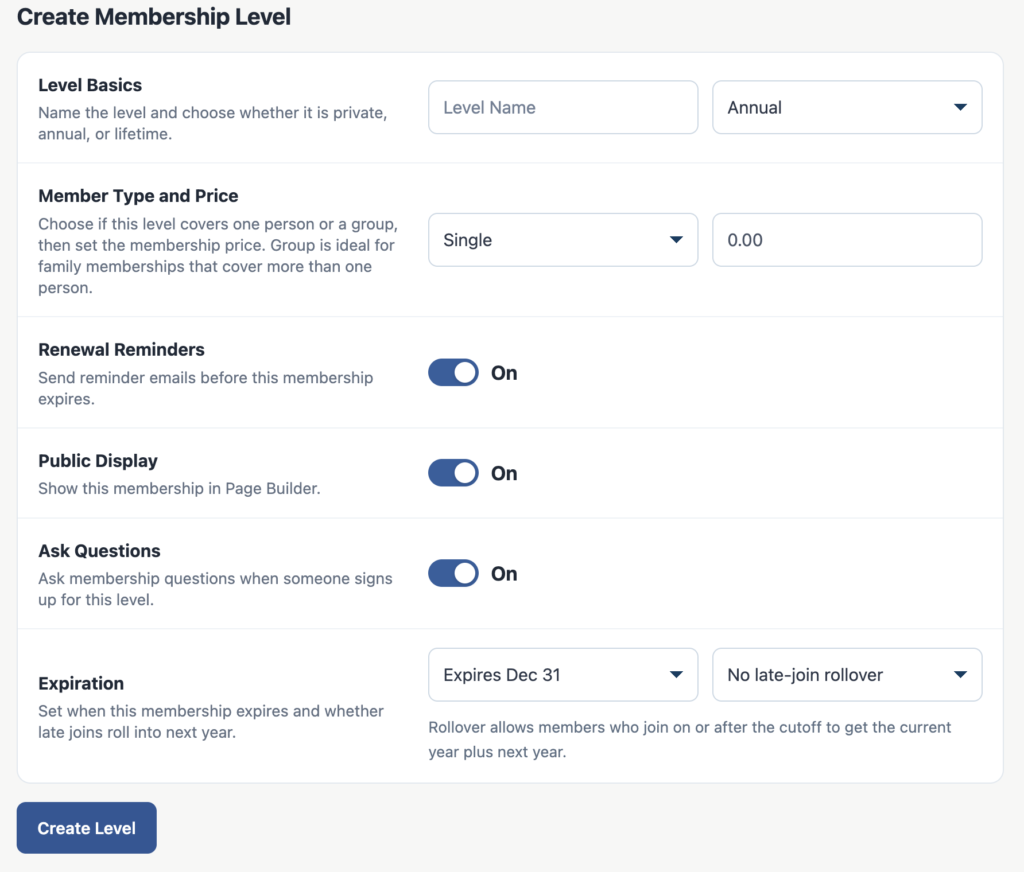
Choice questions may have up to 10 answer options. When you create or edit an individual level, its Ask Questions setting controls whether these questions appear for that level.
Recommended setup order
- Save the club or organization name.
- Save the Multiple Memberships preference.
- Create and save any shared Membership Questions.
- Open Create Level and build the first public or Private level.
- After levels are ready, add Memberships - List or Memberships - Cards to the Blue Ribbon public page.
- Use View Members to add existing members or import a current list.
Changing the setup later
Return to Settings whenever the organization name, multiple-membership rule, or form questions need to change. Saved questions affect forms that use membership questions going forward; existing member records retain the answers already submitted.
Delete Setup removes the club or organization setup and the membership levels beneath it. Use Edit Levels or Archived Levels for ordinary level changes instead.