
Understanding Secretary Show Cards
Use the Secretary Show Card to review entries, run the show, communicate with exhibitors, record show-day changes, and publish results.
About 10 minutes · Reviewed for EZSM 5.2.539Clinics, unmounted events, dressage shows, driven dressage, and Driving CT use specialized Secretary Show Card layouts. Those workflows are covered separately.
Open a Secretary Show Card
From the Show Manager Show Card, select Secretary Office. A Show Manager always has secretary access to their own shows. An additional assigned secretary can open the same tools from their dashboard.
Secretary Show Card header
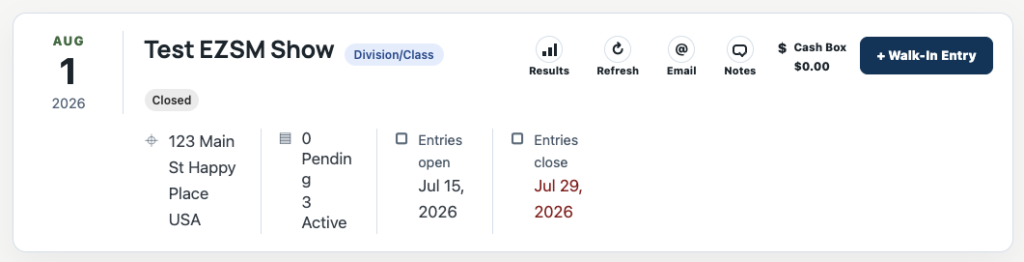
The header confirms which show you are managing and displays:
- The show date, name, Division/Class type, and current status
- The location
- Pending and Active entry counts
- The Entry Open Date and Entry Close Date
- The current Cash Box total
Header tools
- Results: opens the show's public results page in a new tab.
- Refresh: reloads the Secretary Show Card with the latest entry information.
- Email: sends a message to active entries, pending entries, entries missing documents, or a selected division or class.
- Notes: adds or edits a public Show Secretary Note on the results page.
- Wait List: appears when the show has wait-listed entries and opens the wait-list panel.
- Cash Box: shows the current total from walk-in and show-day add/drop cash activity.
- + Walk-In Entry: opens the day-of entry form.
Public notes
Select Notes, enter the message, and save it. The note appears on the public results page and is also displayed beneath the Secretary Show Card header.
Standard notes use a yellow notice. If the note contains the word canceled, the notice changes to red so the cancellation is easier to see. Clear the note and save to remove it.
Walk-in entries and the Cash Box
Select + Walk-In Entry to add a day-of entry directly to the Active Entries lists. Depending on the show setup, the form can collect:
- Competitor, entry number, horse, email, phone, and notes
- Waiver and required health-document checks
- Classes or divisions
- Add-ons and additional-question answers
The form calculates the walk-in total before the entry is added. Collect that amount on site; walk-in money is recorded in the Cash Box rather than the online payout.
Pending Entries
New online entries remain in Pending Entries until they are reviewed. The table displays the information relevant to the show, including:
- Competitor, horse, and selected classes or divisions
- Required Coggins, Rabies, EHV, or CVI documents when enabled
- Entrant notes and quantities for configured add-ons
- An editable entry number
Select the competitor's name to open a detail bubble with contact information, emergency contact, waiver status, documents, add-ons, additional-question answers, and notes.

Approve or refund
- Approve: saves the entry number, moves the entry to Active Entries, and places it in each selected class or division.
- Refund: returns the online entry payment to the original credit card, less non-refundable processing fees.
The Refund action is for a full entry refund, less processing fees. For a partial refund, work with your club treasury to issue a check or provide cash on the day of the show.
Active Entries
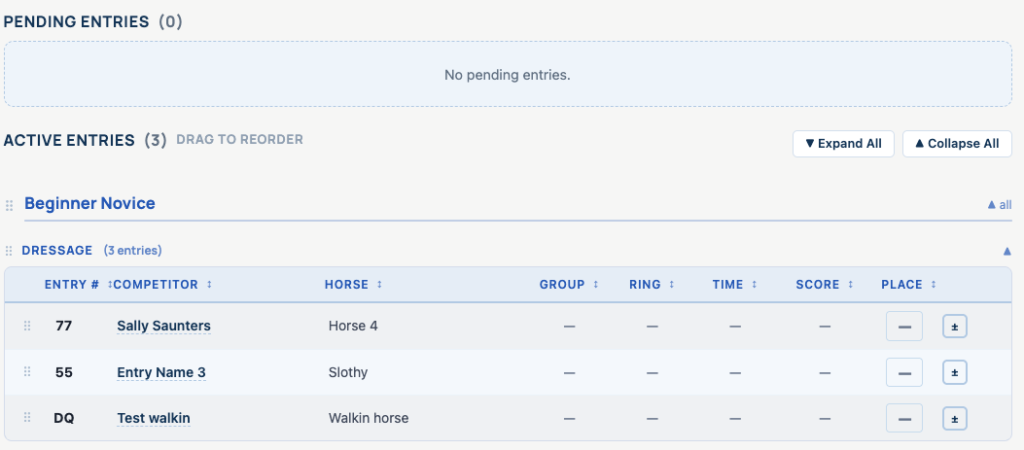
Approved and walk-in entries appear under Active Entries. Use Expand All or Collapse All to open or close every division and class at once. Individual division and class headings can also be opened or closed.
The current Division/Class table can display:
- Entry number, competitor, and horse
- Group, Ring, and Time
- Score and Place
- Controls for moving an online entry back to Pending or opening Add/Drop
If Group, Ring, Time, and Score are all empty, the public Results Page displays only Entry #, Competitor, Horse, and Place. Each additional field becomes active on the Results Page after data is entered in that field.
Ordering and sorting
- Drag divisions to change their order.
- Drag classes to change the running order within a division.
- Drag entries within a class to set their order.
- Select a sortable column heading to temporarily sort the visible rows by Entry #, Competitor, Horse, Group, Ring, Time, Score, or Place.
Show-day fields and placings
Select an editable Entry #, Group, Ring, Time, Score, or Place field and enter the value. Changes save from the table without requiring a separate page-level Save button.
The Place field accepts short values up to two characters, including numbered placings and codes used by your show, such as CH, RC, DQ, or SC.
Add or drop a class or division
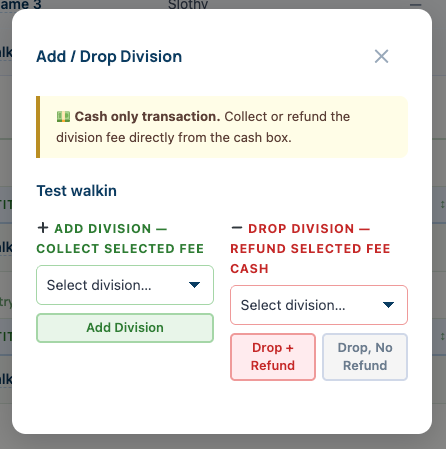
Select the ± control beside an active entry. The window adapts to the show's pricing structure and lets you:
- Add a class or division and collect the displayed fee
- Drop a class or division and record a cash refund
- Drop it without recording a refund
Add/drop changes are cash-only show-day transactions. The Cash Box is updated when a cash amount is collected or refunded.
Move an entry back to Pending
Select the ↩ control beside an active online entry to return it to Pending Entries for further review. Walk-in entries do not display this control.
Live results
Saved class order, entry order, show-day fields, scores, and placings feed the public Results Page. On supported desktop results views, new results are checked approximately every 15 seconds. Mobile visitors may need to refresh the page manually.