
Understanding Show Cards
Use each dashboard card to see a show's current state, monitor entries and money, and open the tools used to run the show.
About 7 minutes · Reviewed for EZSM 5.2.537What is a show card?
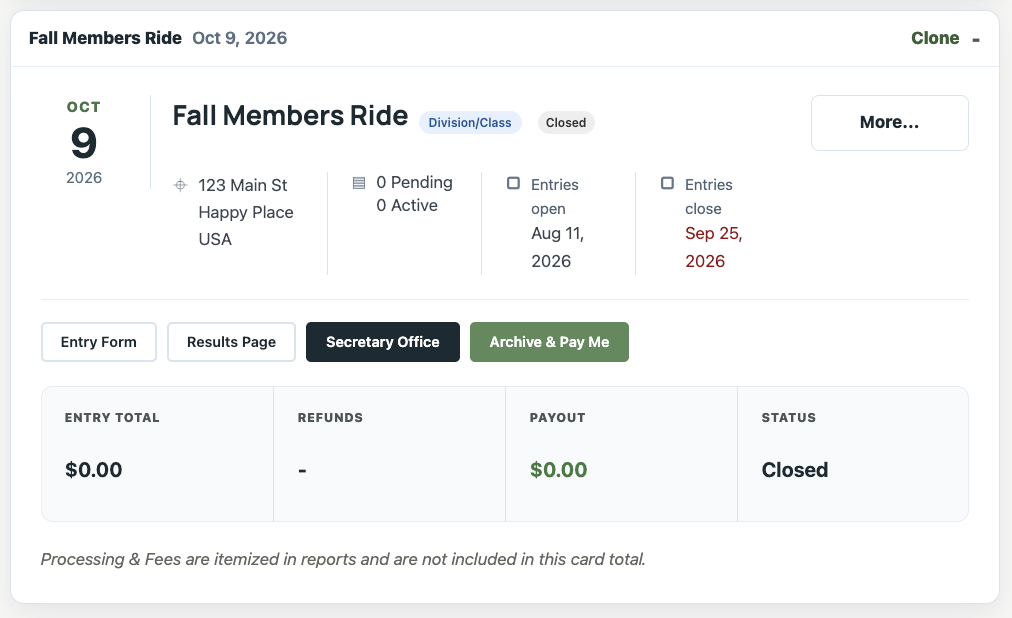
Every show you create has its own expandable Show Manager Show Card under Open Shows in the Show Manager dashboard. When the card is closed, it shows the name, date, a Clone link, and an arrow. Select the card to expand it and see the show information, public links, management tools, and current financial summary.
Show name, type, and status
The top of the card identifies the show and its current state:
- Show name: the name entered in Show Details.
- Show type: Division/Class, Clinic, Event, USEF/USDF Dressage, WDAA, Driven Dressage, or Driving CT.
- Status: Draft, Draft Hidden, Open, Closed, or Complete.
- Drag to reorder: drag the closed card header to move the show within the list.
Draft is visible on your public page but not accepting entries. Draft Hidden stays off the public page. Open accepts entries, Closed stops new entries, and Complete identifies an archived show.
Open the More… menu
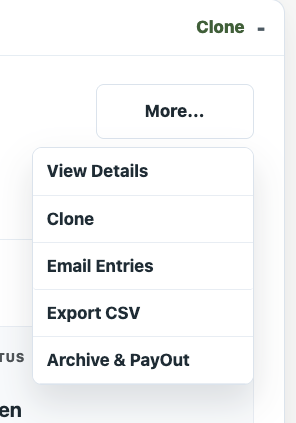
Select More… in the upper-right corner of the expanded card. The available choices depend on the show and its current state:
- Edit: opens an unlocked show's setup.
- View Details: replaces Edit after the show is locked, letting you review the saved setup without changing it.
- Clone: starts a new show using this show as the template.
- Email Entries: opens the email window for contacting selected entry groups.
- Export CSV: downloads the show's current entry data.
- Delete: appears only while the show has no entries. Deleting a show cannot be undone.
- Archive & PayOut: completes the show and begins the archive and payout workflow.
Choose a future Entry Open Date and correct the setup before the show goes live. The saved-show warning reminds you that the show cannot be edited after entries open.
Show and entry information
The information row can display:
- The show date and location
- Pending entries that still need attention
- Active entries currently accepted into the show
Active cards also display the Entry Open Date and Entry Close Date when those dates are set.
Main card buttons
- Entry Form: opens the public form exhibitors use to enter.
- Results Page: opens the show's public results page.
- Secretary Office: opens the working area for entries, numbers, times, scoring, and show-day tasks.
- Archive & Pay Me: completes the show and starts its payout workflow.
Clone is also available beside the show name while the card is closed.
Email entries
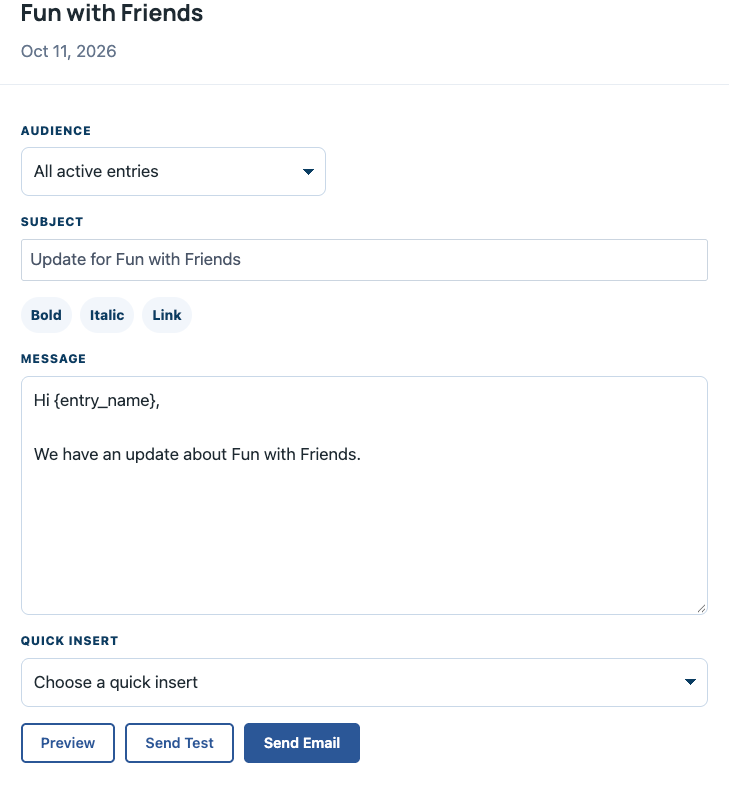
From More…, select Email Entries. The email window lets you contact:
- All active entries
- Pending entries
- Entries with missing documents
- Entries in a selected division or class
Add a subject and message, use Bold, Italic, or Link formatting, and use Quick insert for missing-document instructions, organization and show links, My Shows or My Horses links, and manager or secretary contact information.
Select Preview to review the message, Send Test to check it first, or Send Email when it is ready.
Financial summary
The table at the bottom of the card provides a quick financial snapshot:
- Entry Total: qualifying online entry money associated with the show.
- Refunds: refunded entry money deducted from the show total.
- Payout: the current estimated amount payable to the Show Manager.
- Status: the current show state, such as Draft, Open, Closed, or Archived.
Processing and card fees are itemized in reports and are not included in the simplified card total. Select My Reports when you need the detailed breakdown.
Archive & Pay Me
When the show is finished and its activity is correct, select Archive & Pay Me. This completes the show, moves its Show Manager Show Card from Open Shows to Archived Shows, and begins the payout workflow.
Archived show cards
Select Archived Shows from the dashboard navigation to see completed shows. Archived cards retain the show information, public page links, entry export, email tool, and final financial status. The More… menu replaces active-show deletion and payout choices with Re-open.
Use Remove from results when an archived show should no longer appear in the public results list. This hides the listing; it does not delete the show or its saved results.