
View and Email Members
View Members is the organization’s working membership directory. Use it to add or import records, review submitted information, organize people into lists, email a complete list, and download its data.
About 8 minutes · Reviewed for EZSM 5.2.537Open View Members
- Sign in and open My Dashboard.
- Expand Memberships.
- Select View Members.
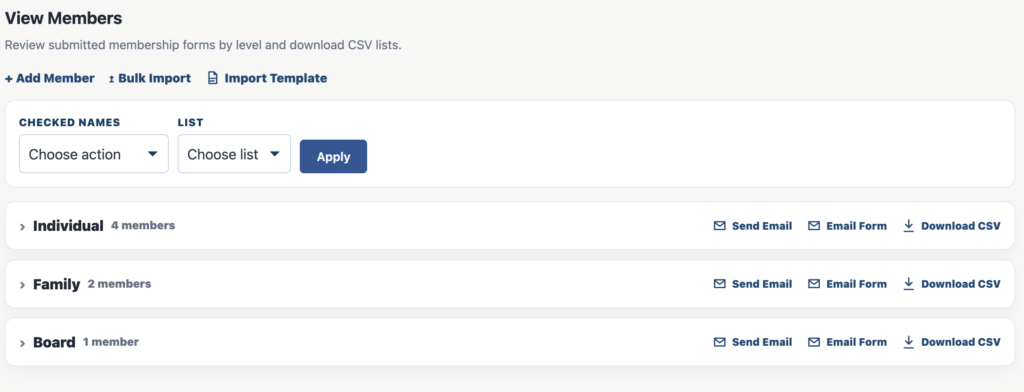
Each active membership level appears as a separate expandable list. The number beside its name is the number of member records currently in that list.
Add Member
Select + Add Member to enter one membership record manually. This is useful for an existing member, a mailed application, or a payment the organization handled outside EZ Show Manager.
- Choose the active membership list.
- Enter the primary member’s first name, last name, and valid email address. These three fields are required.
- Add the phone and mailing address when available.
- If it is a Group membership, add the names and email addresses of as many as 10 additional members.
- Answer any required Membership Questions.
- Select Save Member.
The same email address cannot be added twice to the same list. A manually added record is labeled Manual.
It creates the membership record for the organization. Use it only when any required payment has already been handled another way.
Import Template
Select Import Template before preparing a large member list. EZ Show Manager downloads an Excel workbook already built for the organization’s active membership lists and questions.
The Members sheet includes columns for:
- Membership list
- Primary member first name, last name, email, and phone
- Street address, city, state, and ZIP code
- Up to 10 additional member names and email addresses
- Each saved Membership Question
Use the list selector supplied in the workbook so the list name matches an active membership level exactly. Keep the header row unchanged.
Bulk Import
Select Bulk Import to open the upload area, choose the completed .xlsx workbook, and select Import File.
- Every row must name an active membership list.
- First name, last name, and a valid email address are required.
- If the same email is already in the same list, the import updates that record instead of creating a duplicate.
- Rows with missing required information or an unmatched list are skipped.
- The completion message reports how many records were imported, updated, or skipped.
Imported records are labeled Imported. Like Add Member, importing records does not collect payment.
Open a membership list
Select the arrow or list name to expand it. The table shows:
- Select: Check one or more records for a Checked Names action.
- Primary Name: Select the name to open the member-detail card.
- Email: Select the address to begin an individual email in the device’s email app.
- Type: Shows whether the record is a Single or Group membership.
- Status: Shows how the record was created or its current membership record status.
- Submitted: Shows when the record was first saved.
The member-detail card can display the primary email and phone, mailing address, membership type and status, submission date, additional group members, and answers to Membership Questions.
Checked Names
Check one or more names inside the expanded lists, then choose an action and select Apply.
- Add to list: Creates an additional record in the selected destination list while leaving the original record where it is. A duplicate email already in the destination list is skipped.
- Move to list: Transfers the selected record from its current list to the chosen destination list.
- Remove from list: Deletes the selected record from its current list. A destination list is not needed for this action.
- List: Chooses the destination for Add to list or Move to list.
- Apply: Performs the selected action for every checked record.
Download a CSV first if the organization may need the information later. These list actions organize records only; they do not charge, refund, or otherwise change a payment.
Send Email or Email Form?
Both options address the selected membership list, but they send in different ways.
- Send Email: Opens the device’s default email program with the list’s unique valid addresses placed in BCC and the subject set to the membership level name plus “Members.” The message is composed and sent from that email program. The provider’s recipient limits apply.
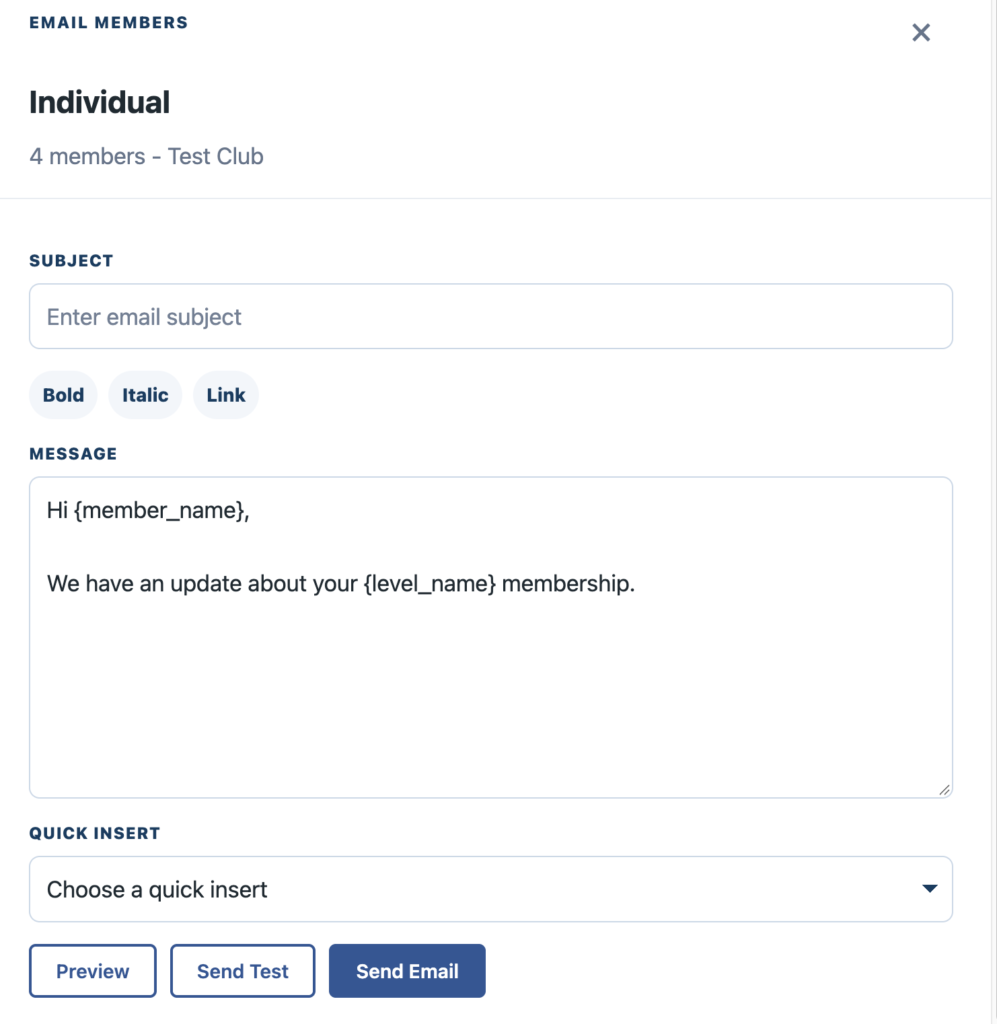
- Email Form: Opens EZ Show Manager’s built-in editor. EZ Show Manager sends a separate personalized message to each unique valid primary email address in the list, so recipients do not see one another’s addresses.
If a list contains no valid email addresses, its email controls are unavailable.
Use the Email Form
The top of the form confirms the membership list, the number of records, and the organization. Complete the form as follows:
- Subject: Required. This becomes the email subject line.
- Bold: Select message text, then choose Bold to emphasize it.
- Italic: Select message text, then choose Italic to style it.
- Link: Select the words that should become a link, choose Link, and paste the full destination URL.
- Message: Required. Edit the starter message or replace it completely.
- Quick Insert: Inserts the organization’s public page link, the member’s My Memberships link, or the membership contact email at the cursor.
- Preview: Displays the subject, formatted message, and email footer without sending anything.
- Send Test: Sends a message with “[Test]” in the subject to the email address on the signed-in manager’s account.
- Send Email: Sends the finished message separately to every unique valid primary email address in the list.
Personalize an Email Form message
The starter message uses codes that EZ Show Manager replaces for each recipient:
- {member_name} becomes the primary member’s name.
- {level_name} becomes the membership list name.
- {organization_name} becomes the club or organization name.
The message is sent under the organization’s name through EZ Show Manager. Replies go to the email address on the Show Manager account. After sending, the status message reports how many emails were successfully sent out of the available recipient addresses.
Check the subject, links, personalization, spacing, and reply address before sending to the complete list.
Download CSV
Select Download CSV beside a membership level to save that entire list as a dated spreadsheet-compatible file. The export includes:
- Submission date and time
- Membership level and status
- Primary name, email, and phone
- Single or Group type
- Membership price recorded for the list
- Additional group members
- Saved Membership Question answers
Use the CSV for board reports, renewal review, mailing work, or an offline backup before reorganizing or removing records.
Email responsibly
Use these tools only for messages the organization is permitted to send. Keep member addresses private, honor unsubscribe or communication-preference requests, and limit access to exported member data.