
Search
Using the Manager Dashboard Reporting Tool
The Reporting Tool gives you a clear overview of your show finances and activity across your account.
How to Access Reports
You can access your reports from:
- My Dashboard
- Show Manager Dashboard
👉 Click My Reports
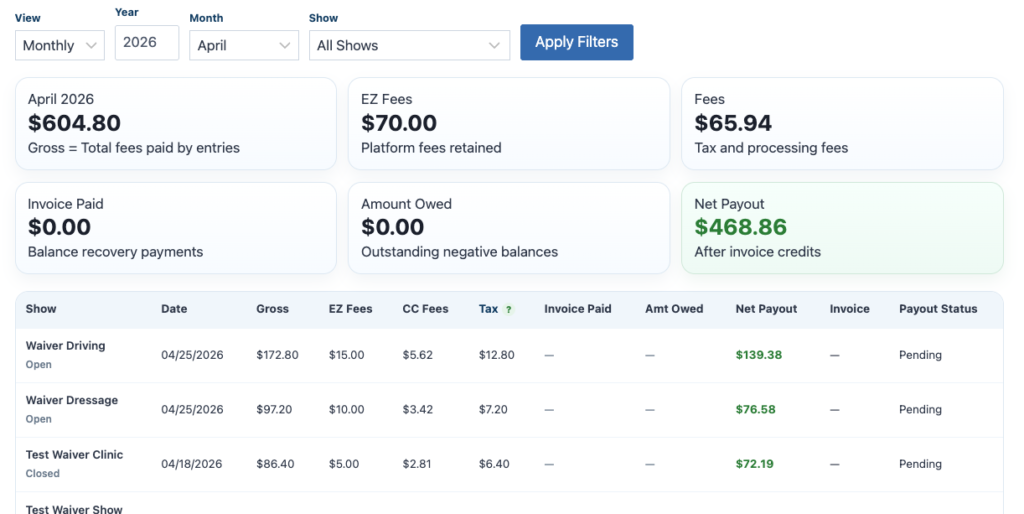
Filtering Your Data
You can customize your report view by filtering:
- Year
- Month
- Specific Show
👉 This allows you to focus on exactly the data you need
Summary Cards
At the top of the page, you’ll see quick summary cards for:
- Gross Collected
- Platform Fees Retained
- Credit Card Processing Fees
- Balance Recovery Payments
- Outstanding Negative Balances
- Net Payout
👉 These give you a fast snapshot of your financial performance
Detailed Report Table
Below the summary cards is a full breakdown of your shows, including:
- Individual show totals
- Invoice details
- Payment statuses
👉 This is your detailed financial record across all events
Exporting Your Data
Need records for bookkeeping?
👉 Click Download CSV
- Export your report data
- Use in Excel, Google Sheets, or accounting software
Navigation
- Use Back to Dashboard to return to your main view
Why This Matters
- Track performance across multiple shows
- Monitor payouts and fees
- Stay organized for bookkeeping and tax reporting