How Entries Work
EZ Show Manager uses a simple step-by-step process to guide exhibitors through entering a show or clinic.
The process may vary slightly depending on the event type.
Before You Start: Sign In or Create an Account
Before starting an entry, competitors are asked to sign in or create a free EZ Show Manager account.
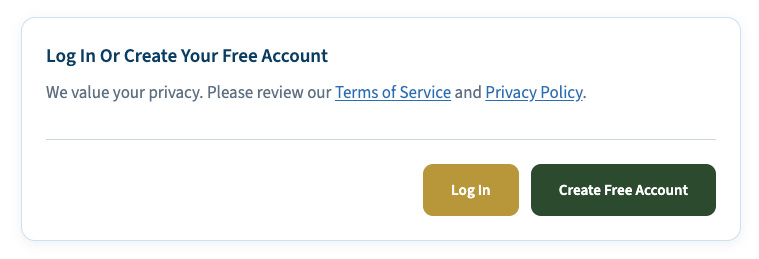
This account connects your entry to your personal My Shows dashboard. It allows you to:
- View current and past entries
- Return to your entry information later
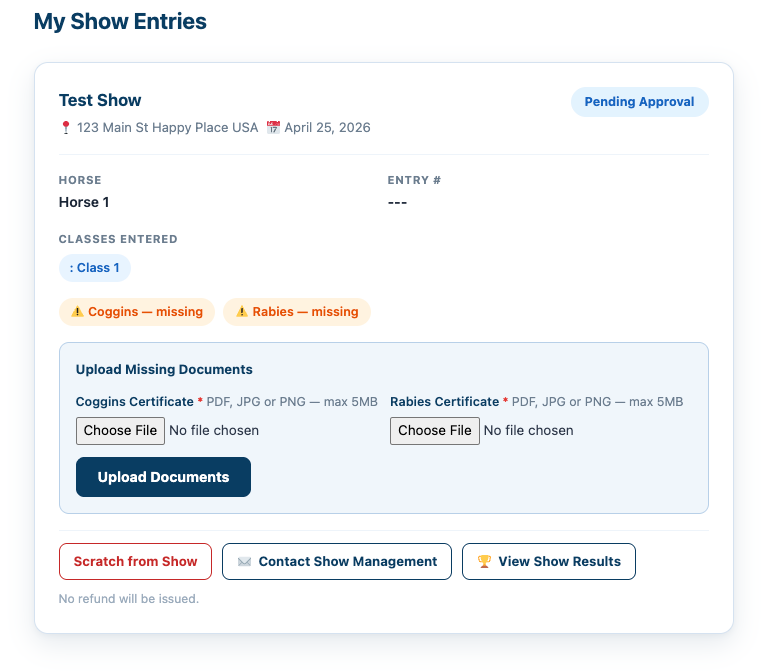
- Upload or update required health documents
- Scratch from a show if allowed
- Receive show-related messages
- Keep payment/order history connected to the correct person
Even though checkout may also create a customer record, EZ Show Manager needs your account before the entry is submitted so your entry is saved under the correct person from the start.
If you have entered before but do not remember your password, use Forgot Password instead of creating a second account. This keeps your entries and documents connected in one place.
Basic Show Entry Process
Most shows follow a 5-step entry process:
Step 1: Contact Information
- Rider/entrant details
- Emergency contact information
Step 2: Horse Information
- Horse name
- Upload required documents, if applicable:
- Coggins
- Rabies
Step 3: Class Selection
- Select one or more classes
- Pricing is calculated automatically based on your selections
Step 4: Add-Ons, If Available
Optional items may include:
- Stall reservations
- Meals
- Grounds fees
Step 5: Review & Submit
- Confirm all details
- Submit entry and payment
Clinic Entry Process
Clinic entries follow a similar flow with a few key differences:
Step 1: Contact Information
- Standard contact details
- Option to register as an auditor, if available
Step 2: Horse & Attendance Details
- Horse information
- Select which day or days you will attend
- Add a time preference note
Step 3: Add-Ons
- Optional add-ons, if offered
Step 4: Review & Submit
- Confirm details and complete registration
Clinic Waitlist Option
If a clinic is full:
- You will have the option to join a waitlist
- If approved, you will receive an email with a private entry link
- The private link allows you to complete your registration
If auditor spots are still available, those can still be booked through the regular entry form.
What Happens Next
After submitting your entry:
- Your entry is sent to the show secretary for review
- Once approved, your entry will be placed into the appropriate classes
Where To View Your Entry
You can return to your My Shows dashboard to manage your own entry details, documents, and show-related actions.
You can also return to the show’s Public Page at any time to:
- View entries in the class list
- See entry numbers and order of go
- Follow live updates during the show