
Search
Managing Auditors
When setting up a clinic, you have the option to allow Auditors and set a price for auditing.
Enabling Auditors
During clinic setup, you can choose:
- Whether auditors are allowed
- Whether there is a fee to audit
How Auditors Register
Auditors use the same entry form as participants.
- They will see an option to register as an auditor only
- They can complete registration without selecting clinic participation
If Clinic Spots Are Full
When all clinic spots are filled:
- The entry form will allow users to:
- Join the waitlist
- Or register as an auditor (if auditor spots are still available)
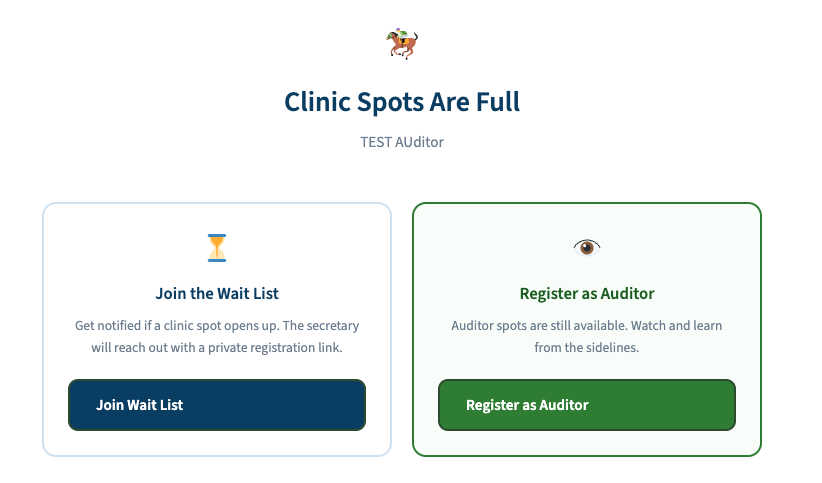
👉 Auditor registration remains open until auditor capacity is reached
Viewing Auditors
Auditors are managed in a separate section:
👉 Auditor Tab
This keeps them organized and separate from active clinic entries.
What Information is Available
In the Auditor Tab, you can view:
- Name
- Purchased add-ons (such as bagged lunches, etc.)
Why This Matters
- Keeps clinic participants and auditors organized
- Allows additional attendance without impacting scheduling
- Helps manage add-ons and headcount