
Search
Switching Between Shows
If you are managing multiple shows, you can quickly switch between them without leaving the Secretary Office.
How to Switch Shows
- Go to the Secretary Office
- Locate the mini show cards below the header
- Click on the show you want to access
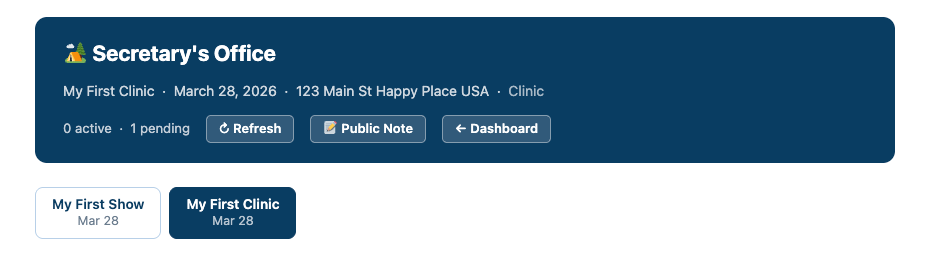
What This Does
- Instantly loads the selected show
- Updates all entries, classes, and data
- Keeps you in the same workspace
Why This Matters
- Ideal for multi-day or back-to-back events
- Saves time navigating between dashboards
- Keeps workflow smooth during busy shows
Next Step
👉 Continue to Assigning Ride/Drive Times (Clinics)
Assigning Ride/Drive Times (Clinics)
For clinics, you can assign ride or drive times to each entry.
How to Assign Times
- Go to the Active Entries section
- Locate the clinic entry
- Enter the time in the designated field
What Happens Next
- The assigned time appears on the Results Page
- Exhibitors can view their scheduled time
Tips
- Assign times after approving entries
- Adjust as needed if schedule changes
Why This Matters
- Keeps clinic schedules organized
- Reduces confusion for participants
- Allows real-time schedule updates