
Search
Understanding Show Cards (Manager Dashboard)
Each show or clinic you create will appear as a Show Card on your Show Manager Dashboard.
These cards give you a quick snapshot of your show and provide access to all major tools and actions.
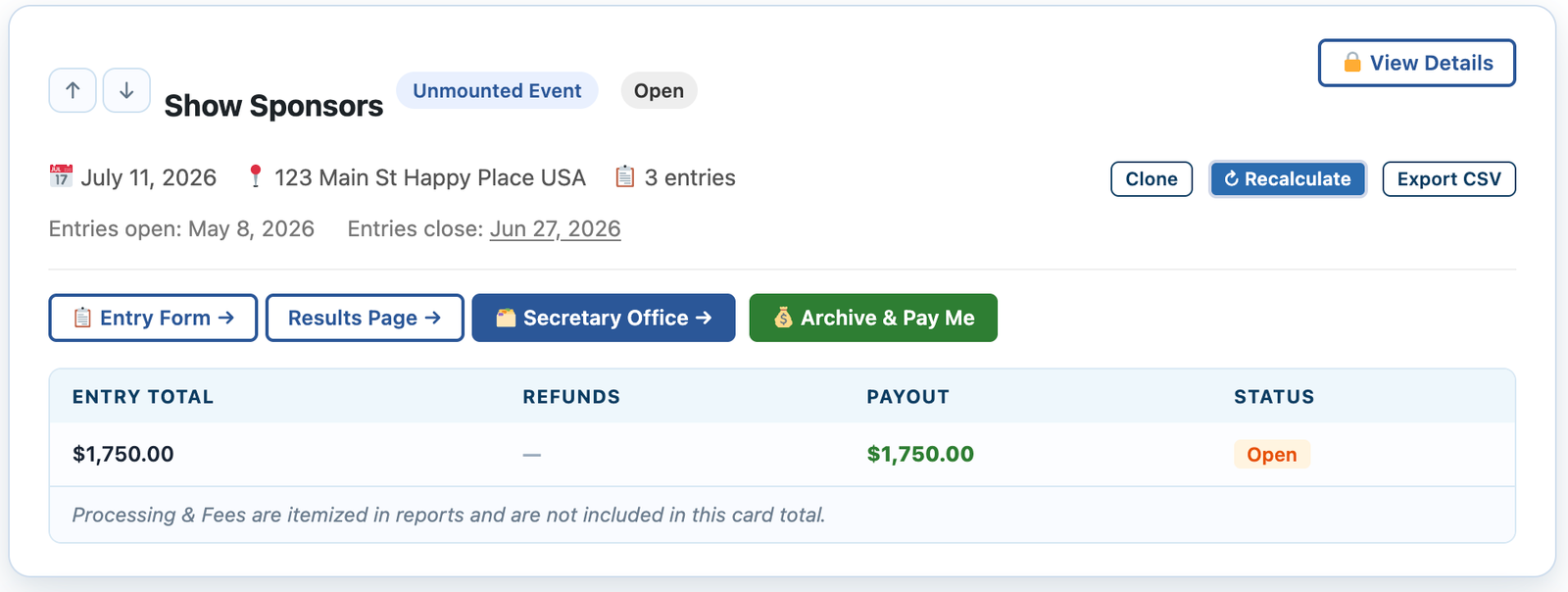
What is a Show Card?
A Show Card is your control center for each individual show.
From here, you can:
- View key details
- Access entry and results pages
- Manage entries and finances
- Run your show from start to finish
Show Header Information
At the top of each card, you’ll see:
- Show Name
- Show Type (Basic or Clinic)
- Status
- Draft
- Open
- Closed
- Delete Button
- Available only if entries are not open
- Use this to remove a show you no longer need
- Export CSV – Raw file of all entry data
- Up/Down arrows – Reorders cards – Order will reflect how they appear on results page.
Show Details
Below the header, you’ll find important event information:
- Show date
- Location
- Pricing (e.g., price per class)
- Number of current entries
You’ll also see:
- Entry Open Date
- Entry Close Date
🔄 Recalculate Button
The Recalculate button updates all financial totals shown in the card.
👉 Use this if:
- You’ve added walk-in entries
- You’ve made manual adjustments
- Numbers don’t look up to date
Quick Access Buttons
Each Show Card includes direct links to key areas:
- Entry Form → View or share your entry page
- Results Page → View live or final results
- Secretary Office → Manage entries and run the show
- Archive & Pay Me → Close the show and initiate payout
- Manage Refunds → Issue or track refunds
Financial Summary Table
This section gives you a full breakdown of your show’s finances:
- Total Online Fees → Payments collected online
- Refunds – Visual reminder of any refunds you requested
- Payout to You → Final amount you will receive
- Status → Current show or payout status
Why This Matters
Your Show Card gives you a real-time snapshot of:
- Entries
- Payments
- Payout totals
👉 Everything you need to manage your show is in one place